Correct and adjust stock
Receipts and production closes are permanent: you never edit or delete them, because the ledger is your audit trail. So when a count is wrong, a lot came in without a cost, or you need to back-fill lot codes onto stock you already hold, you do not rewrite history. You add a new movement that corrects it. This is the article the rest of the manual points at when it says "correct it with an adjustment in Stock": how to adjust a quantity with a reason, set a landed cost, split pooled stock into named batches, and back-fill costs and dates, all the append-only way.
- Adjustment: a reason-coded quantity correction to a lot, recorded as a stock movement rather than an edit. Its reason is one of Recount, Correction, Rounding, Damage, or Loss; a write-off reason (Damage or Loss) can only decrease.
- Update stock details: a CSV flow that defines batches, per-batch landed costs, and control dates on stock you already hold, without changing quantity.
- Cost-pending stock: stock imported without a cost. Set landed cost records that cost once.
- Split: carves named child batches out of a lot's untracked, pooled stock.
- Append-only rule: the whole point. The mistake and its correction both stay on the ledger.
Steps
- Find the correction tools. Open Stock, and a lot's Actions menu.
Stock opens on the Inventory grid, "what you hold right now, across materials and finished goods, and what it is worth". A sub-nav runs across the top:
- Inventory: this grid.
- Lots: every batch you hold.
- Ledger: every stock movement.
- Lot trace: the trace board.
The grid lists each item with its SKU and type, then Available, Committed, Quarantined, WAC per unit, Total value, Buildable, and its Publish and Sync state, so you can see at a glance where a figure looks wrong before you touch it. Two buttons sit above it, Import stock and Export CSV, and every row carries an Actions menu.
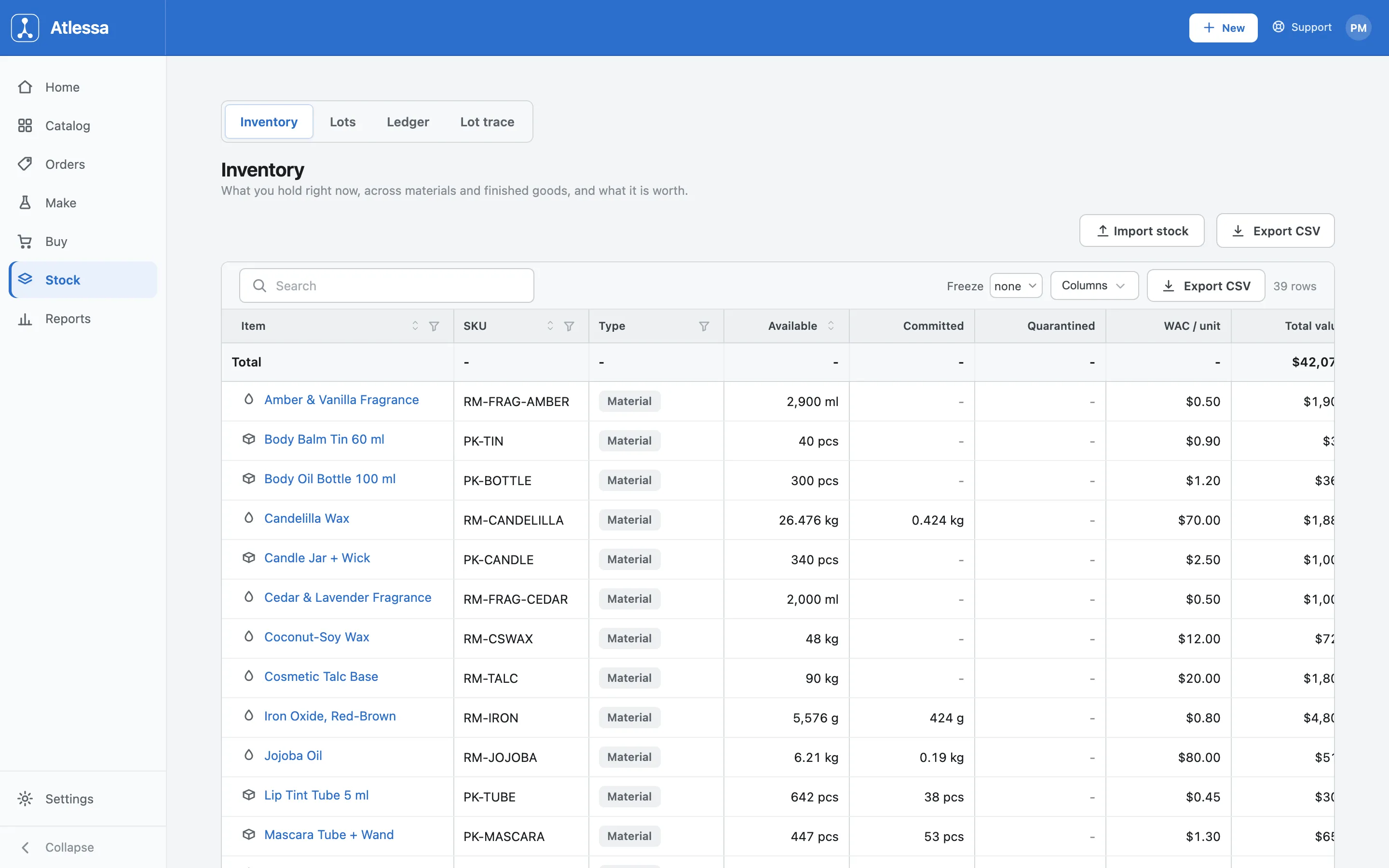
The Stock Inventory grid: each item with Available, Committed, Quarantined, WAC per unit, and total value, the Inventory / Lots / Ledger / Lot trace sub-tabs, and a per-row Actions menu. The corrections all live on that Actions menu, on the Inventory grid and the Lots list:
- Adjust stock: a quantity.
- Set cost (or Set landed cost): a cost-pending lot.
- Split: carving pooled stock into batches.
- Hold in quarantine: setting a batch aside (covered in How batches and lots work).
Before any of them, hold the one rule that shapes all of this: receipts and closes are append-only. No edit, no delete. Every correction below is a new movement, so both the original and the fix stay on the ledger where an audit can see them.
- Adjust a quantity: Actions, Adjust stock, pick a reason, enter the new count.
When a physical count does not match what Atlessa shows, you fix it with an adjustment, not by editing the receipt. Open the lot's Actions menu and choose Adjust stock. The modal names the item and batch (here Jojoba Body Oil 100 ml, Batch FG-OIL-0714) and shows what it currently holds (Available 21 pcs), so you are always adjusting one specific lot.
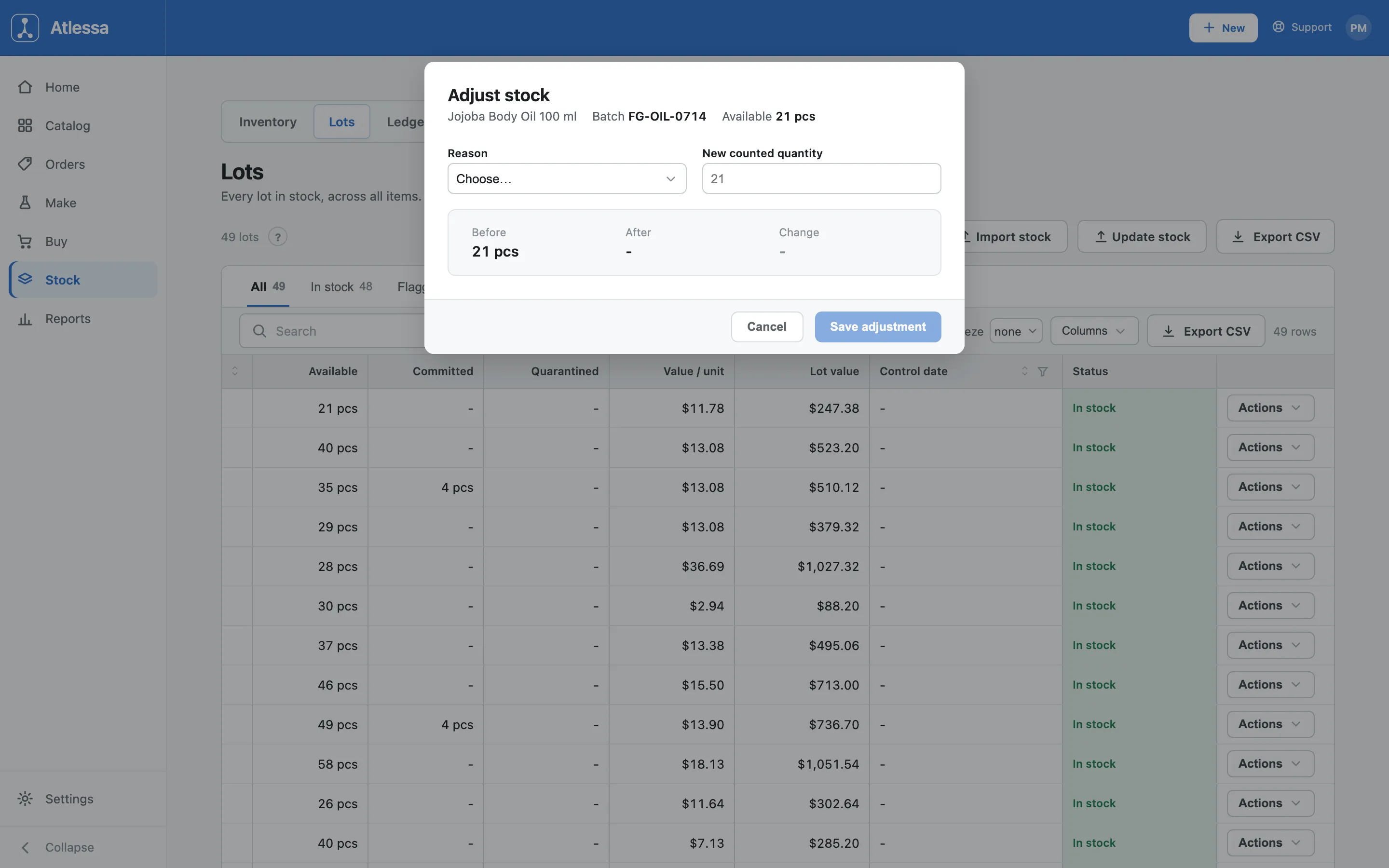
The Adjust stock modal for one lot: item and batch, current Available, a Reason dropdown, the New counted quantity field, and a Before / After / Change read-out. Pick a Reason (Recount, Correction, Rounding, Damage, or Loss), then type the New counted quantity: the real figure you counted, not the difference. Atlessa works out the signed change and shows it as a Before / After / Change read-out, so you see exactly what the movement will record before you save. Click Save adjustment and Atlessa books the signed change against that lot as a stock movement. That fixes a miscount without ever touching the receipt.
One rule shapes the reasons: a write-off reason, Damage or Loss, can only decrease stock, never add, because damage and loss are always stock going away. To increase a count, use Recount or Correction. In short:
- Recount, Correction: go either way.
- Rounding: trims small unit-conversion remainders.
- Damage, Loss: only ever take stock off.
- Fix costs and batches on stock you already hold.
Quantity is only one thing that can be wrong. A lot can be on hand with no cost, or as one anonymous pool when you needed named batches with their own costs and dates. Three tools fix those, and none changes how much you hold.
Update stock details is the bulk one, from the Lots list "Update stock" button. It "defines batches, sets a per-batch cost, and sets control dates on stock you already have, without adding quantity", for materials and finished goods, matched by SKU. A CSV flow: Download template, fill it, upload it. Columns:
- sku (required).
- lot_number (optional): giving it to a not-tracked item switches that item to batch-tracking; leaving it blank sets a cost on the pooled stock.
- stock_per_lot (optional): an item's batches cannot total more than what is on hand; the rest stays pooled.
- plus the unit-cost and control-date columns.
The headline is that quantity is conserved: it never adds stock, only defines batches, costs, and control dates on stock you already hold. This is the tool to back-fill lot codes, per-batch landed costs, and control dates onto stock you imported in bulk or hold as a pool.
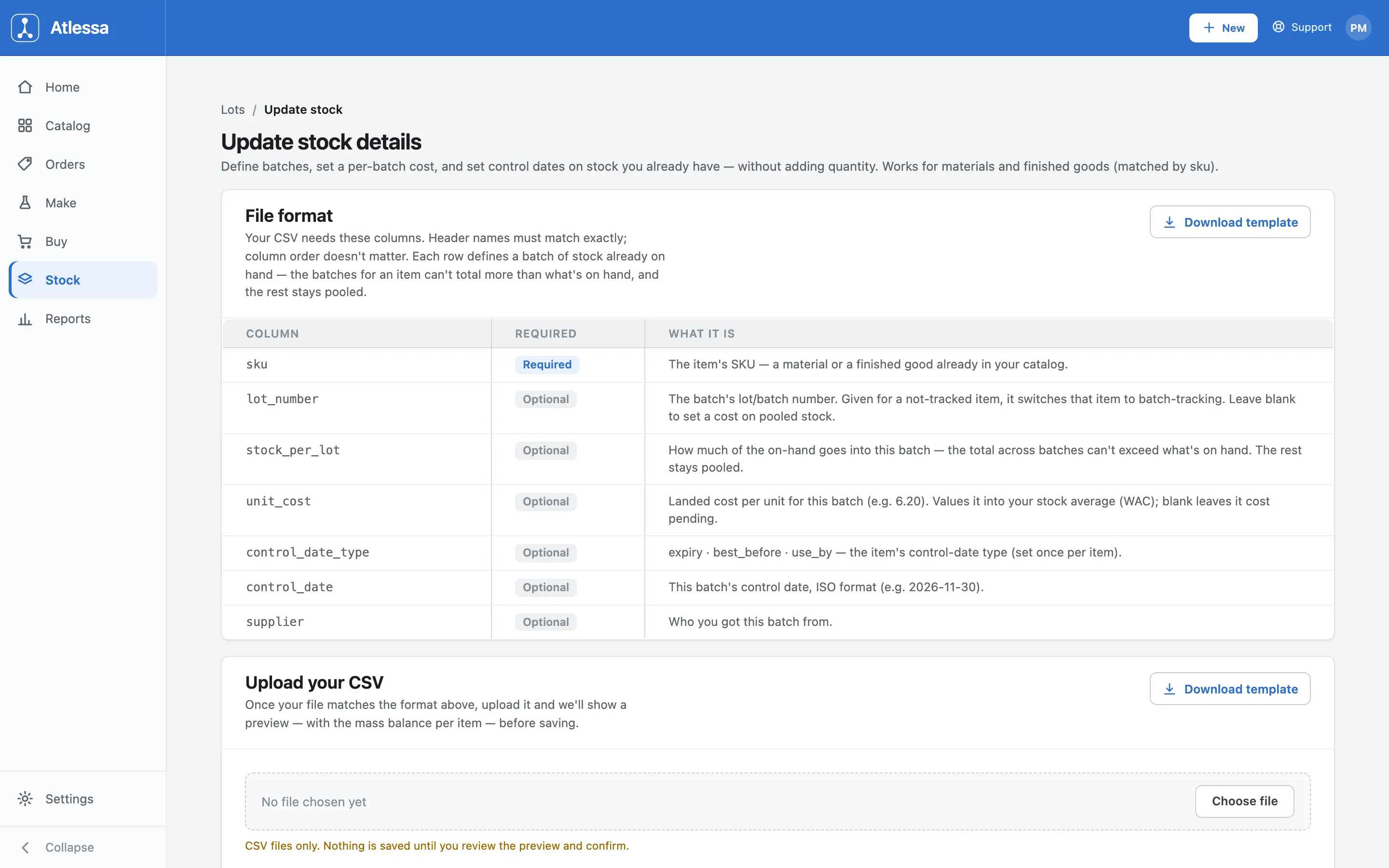
Update stock details (/stock/update): a CSV flow with a Download template and columns table (sku required, lot_number and stock_per_lot optional, plus unit cost and control date), that never adds quantity. Set landed cost is the single-lot version. Stock imported without a cost shows as cost pending, and its Actions menu offers Set cost (or Set landed cost) to record the landed cost once. You can set it once; editing a cost already set is refused, because costs are append-only. If a set cost is wrong, correct it with an adjustment, not by overwriting. Landed cost and how it folds into WAC are in Receive stock.
Split carves named child batches out of a lot's untracked, pooled stock, from the same Actions menu. Each child gets its own cost and control date, so a single anonymous pool becomes individual batches you can trace and watch. In v1 you split from the default Untracked pool, so an item whose stock is already all in tracked lots has nothing to split. Use Split for named, separately-costed batches out of stock that came in as one lump.
- Everything is a movement, so the history stays intact.
Whichever tool you used, the correction lands the same way: a new movement on the Stock Ledger (the Ledger sub-tab) and on the item's own ledger. The original and the correction sit side by side, so nothing is hidden and the trace stays whole. That is the append-only rule paying off: because you never rewrote the receipt or close, an auditor can read exactly what happened and how you fixed it.
Pick the tool by what is wrong:
- Wrong quantity on one lot: an Adjust with a reason.
- A whole wrong delivery: an offsetting receipt for the same lot, in Receive stock.
- A missing or mis-set cost or date: Set cost or Update stock details.
- A pool that should have been named batches: a Split.
- A batch to hold while you investigate: Hold in quarantine, a balanced move into the quarantine bucket, in How batches and lots work.
Every one of them leaves the ledger honest.
Common questions
- How do I fix a miscount?
- Adjust it. Open the lot's Actions menu, choose Adjust stock, pick a reason (Recount or Correction for a plain count fix), and type the new counted quantity, the real figure, not the difference. Atlessa records the signed change against that lot as a movement and shows a Before / After / Change read-out first. You never edit the receipt the stock came in on.
- Can I edit or delete a receipt or a production run?
- No. Receipts and closes are append-only, so there is no edit and no delete. Correct a mistake with a new movement: an Adjust for a wrong quantity, an offsetting receipt for a wrong delivery, or Set cost / Update stock details for a cost or date. Both the original and the correction stay on the ledger, which is exactly what an audit wants.
- A lot came in without a cost. How do I set it?
- Stock imported without a cost shows as cost pending. Open its Actions menu and choose Set cost (or Set landed cost) to record the landed cost. You set it once; a cost already set cannot be edited (costs are append-only), so if a set cost is wrong you correct it with an adjustment rather than overwriting.
- How do I put lot codes, costs, or control dates on stock I imported in bulk?
- Use Update stock details, from the Lots list. Download the template, fill in the sku (required) plus any lot_number, stock_per_lot, unit cost, and control date, and upload it. It defines batches, per-batch costs, and control dates on stock you already hold and conserves quantity: it never adds stock, so nothing changes except its batches, costs, and dates.
- What does Split do?
- Split carves named child batches out of a lot's untracked, pooled stock, each child getting its own cost and control date, so one anonymous pool becomes individual batches you can trace and watch. In v1 you split from the default Untracked pool, so an item whose stock is already all in tracked lots has nothing left to split.
- Where do adjustments show up?
- On the Stock Ledger (the Ledger sub-tab under Stock) and on the item's own ledger, as their own movements. Every correction is recorded, so the original figure and the correction sit side by side and the history stays intact for trace and audit.
If it is not working
- The Adjust modal will not let me increase the quantity.
- You chose a write-off reason. Damage and Loss can only decrease stock, because they represent stock going away. To increase a count, pick Recount or Correction instead, which go either way, then enter the new counted quantity.
- Split says there is nothing to split.
- The item's stock is already all in tracked lots, and only untracked, pooled stock can be split. There is no default Untracked pool left to carve batches out of. Stock that is already tracked is already in lots; Split is only for turning a pool into batches.
- I cannot change a cost that is already set.
- Costs are append-only once set, so a landed cost already recorded cannot be edited. Do not overwrite it: record an adjustment instead, so the original cost and the correction both stay on the ledger. Set cost is a once-only action for a cost-pending lot, not a way to re-edit a cost later.