Fulfil an order
Shopify ships the parcel. Atlessa makes sure the stock is there, reserves the exact lots, and hands the order off, so the sale draws down real stock and your lot trace stays intact. Every order carries a four-step path that shows where it is and what it needs next, and there is more than one way to move it along.
- Reserved: stock held for that order, drawn by nothing else.
- Short: not enough finished stock to cover the order, so it needs a production run first.
- Assign lots (pack capture): recording which finished lot ships each line. That link makes the trace Exact rather than an oldest-first Estimate.
Steps
- Find the order in Orders.
The Orders list is every order synced from your channel, with its payment, fulfilment, margin, and the one thing it needs next. Queue tabs split the work:
- Open (6 here): everything still to do, the union of the next three.
- To build: a line is short and needs a run first.
- To assign lots: reservable from stock, no lots picked yet.
- To fulfil: lots assigned, waiting on Shopify.
- Fulfilled and All: there when you want them.
The Next step column names the one action each order needs, Make, Assign lots, or Fulfil in Shopify, and goes blank once fulfilled. Work straight down it: SO-1019 needs Make, SO-1017 Fulfil in Shopify, SO-1016 Assign lots.
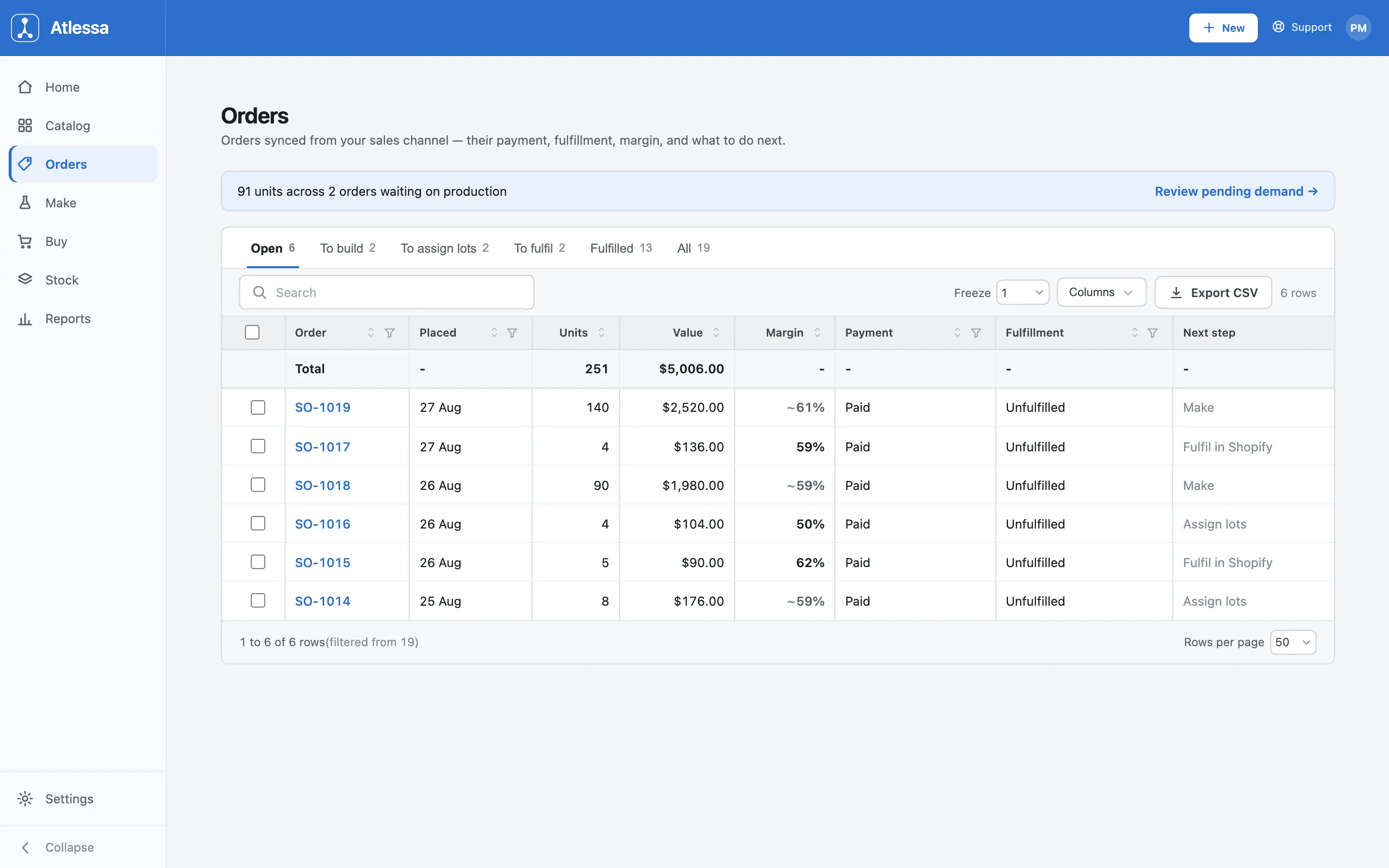
The Orders list: queue tabs with counts and a Next step column. - Open the order and read the stepper.
The four-step path across the top is the spine of the flow, and each step names who does it:
- 1 Stock ready and 2 Assign lots: yours.
- 3 Fulfil in Shopify: hands off to Shopify.
- 4 Fulfilled: syncs back on its own (Auto).
The current step is highlighted. SO-1014 has stock ready and waits on step 2. The tiles below give order value, cost at weighted average (WAC), and margin. The Stock movements ledger is the order's audit trail: every reservation, consumption, and release, plus anything it could not reserve. Right now it shows 8 units of Volumising Mascara held against lot FG-MASC-0728.
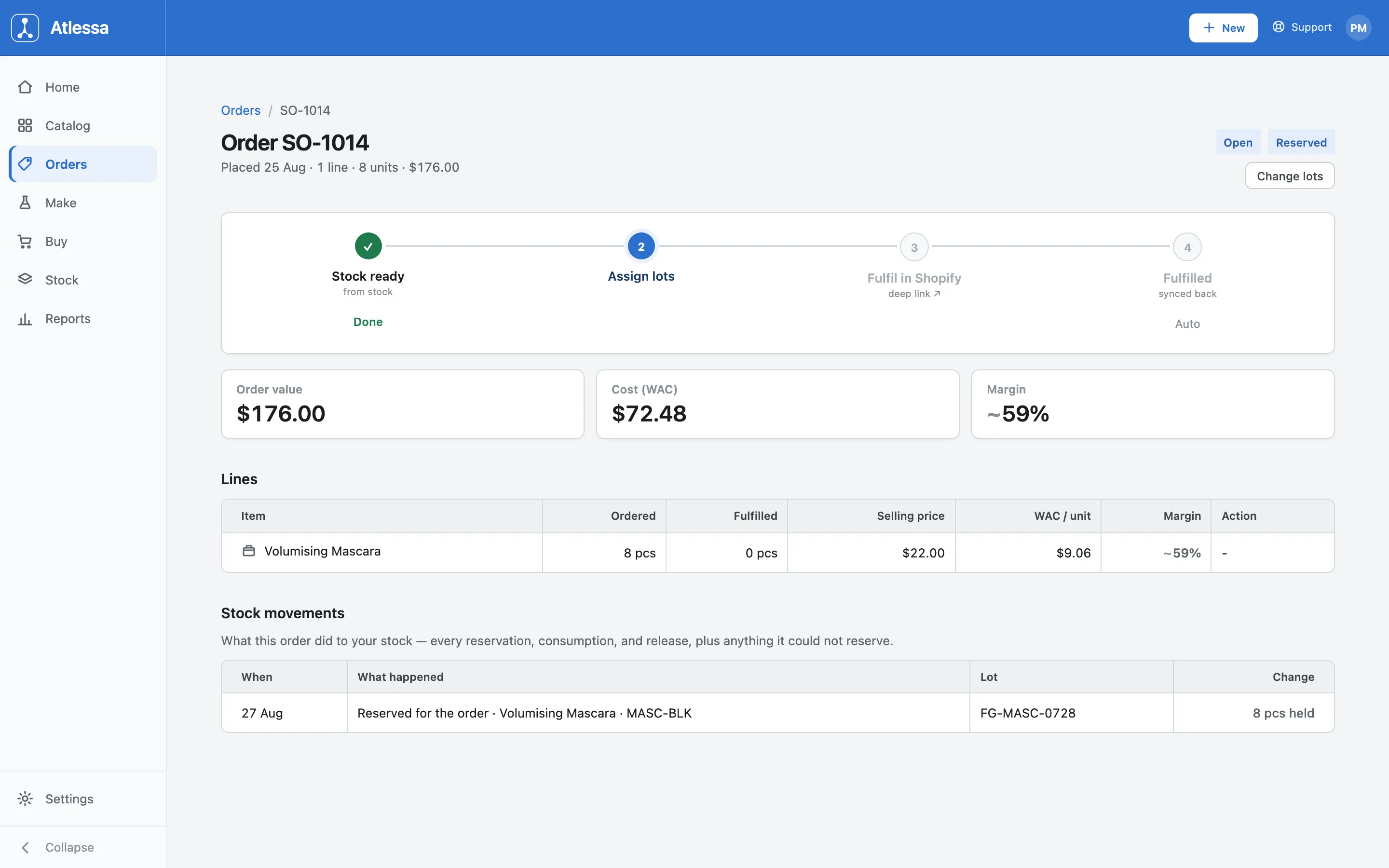
SO-1014: the four-step stepper, the tiles, and the ledger showing 8 units reserved. - Assign the lots.
From the list selection bar or the order, open Assign lots: a scan grid, one row per line, where you pick the exact finished lot for each. The picker lists only the finished lots you can ship, each with its made date, best-by, quantity, and suggested rotation (FEFO by control date, FIFO when a lot has none). Scan a code or pick from the list. Recording that link is the pack capture; it makes the trace Exact (scan confirmed) rather than an oldest-first Estimate, the model in How batches and lots work.
The grid is quantity aware. Assign a lot covering fewer units than the line needs and the row stays Partial with the picker open for a second lot, while the Assigned column counts up (0 / 8 here). Any unit you cannot cover stays unfulfilled; send it to a run from the row, the order, or the selection bar.
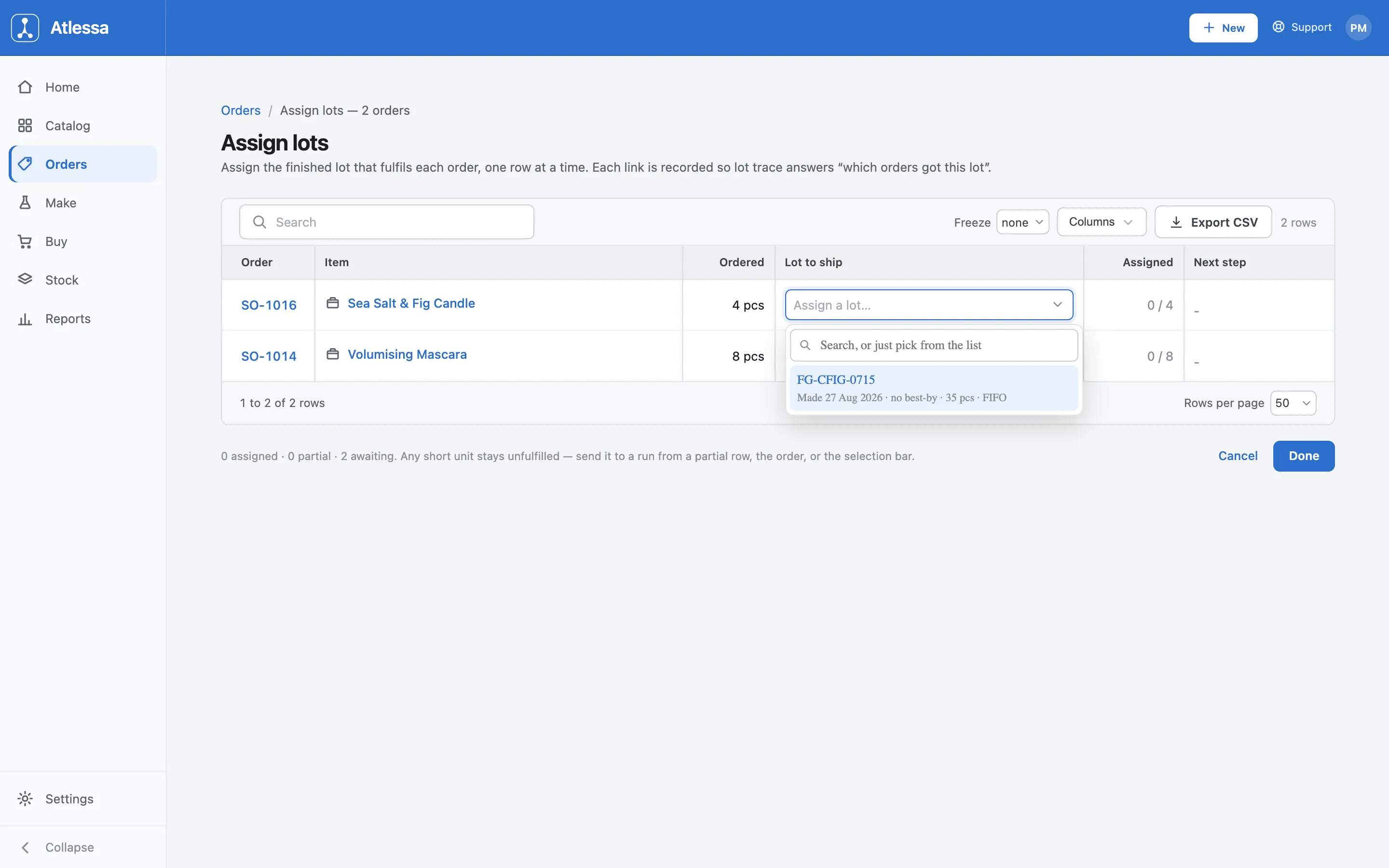
Assign lots: one row per line, picker open on a finished lot (35 pcs, FIFO). - Fulfil in Shopify.
With every line assigned, step 3 goes live and the order reads Fulfil in Shopify. Click the deep link (an outbound arrow) and Shopify takes over the fulfilment and the shipping label. The Assigned lots table records the exact lots and the date each was linked, so the trace is locked before the parcel leaves; Packing list prints a pick sheet to match the Shopify label. Once Shopify marks the order shipped, step 4 flips to Fulfilled on its own, usually within a minute.
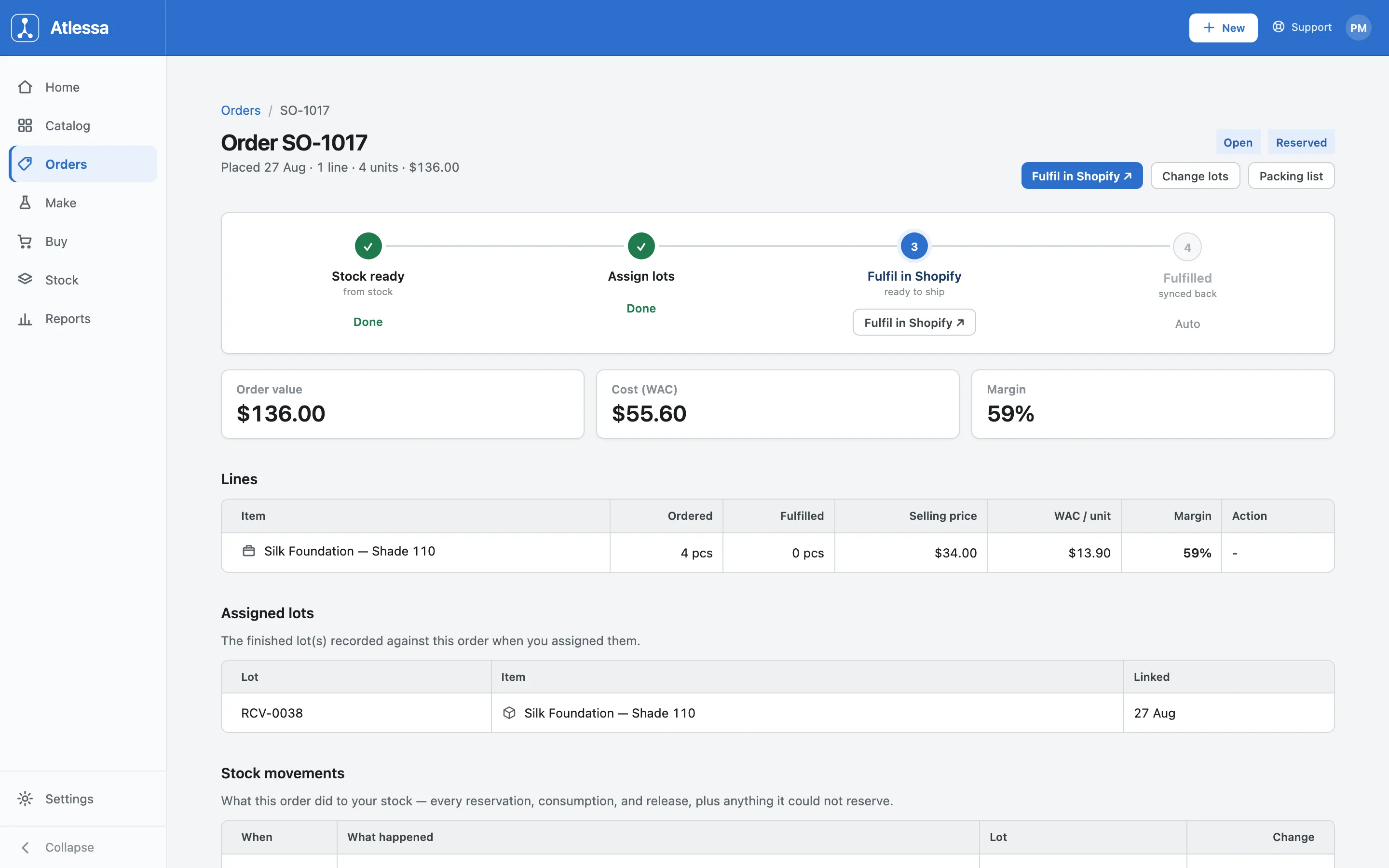
SO-1017 at step 3: the Fulfil in Shopify deep link ready, lot RCV-0038 recorded. - Confirm it closed.
A fulfilled order shows Fulfilled with a Consumed badge and all four steps ticked (step 4 reads Synced). Both lines here are fully fulfilled, 8 of 8 and 4 of 4. The proof is in the ledger: the earlier reservations are joined by Consumed to fulfil the order rows, minus 8 and minus 4 units against lots PRDC-0002 and FG-MASC-0728. Held stock is now consumed, the exact lots recorded, and the margin (about 60%) locked in.
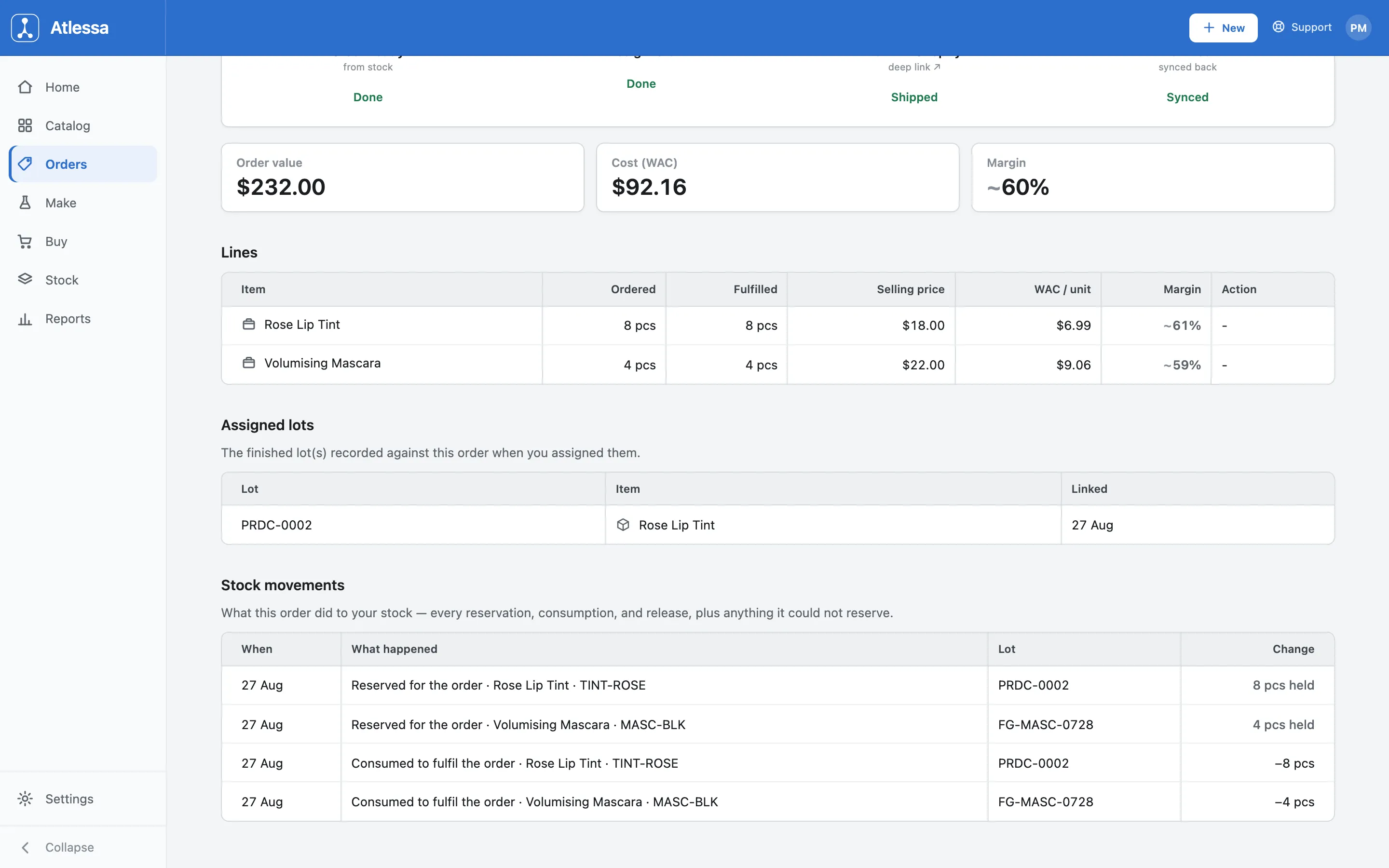
Fulfilled SO-1012: every step ticked, the reserved lots now consumed, minus 8 and minus 4.
Other ways to fulfil
The walkthrough is the fullest path, but you need not open every order. The same three actions, Assign lots, Packing list, and Fulfil in Shopify, are on the list too, one order or many, and an order can be fulfilled in Shopify first and reconciled after. Four routes reach the same close.
- From the order.
Working an order's stepper (Assign lots, then Fulfil in Shopify) is Steps 1 to 5 above, the route for seeing the lots, the ledger, and the margin as you go. The rest are shortcuts for moving quickly or in volume.
- In place from the list, one order.
Tick an order's checkbox in any queue and a selection strip offers the action that fits it: Assign lots, Packing list, or Fulfil in Shopify. Assign lots opens the same scan grid on just that order, so you pick the lot without leaving the list.
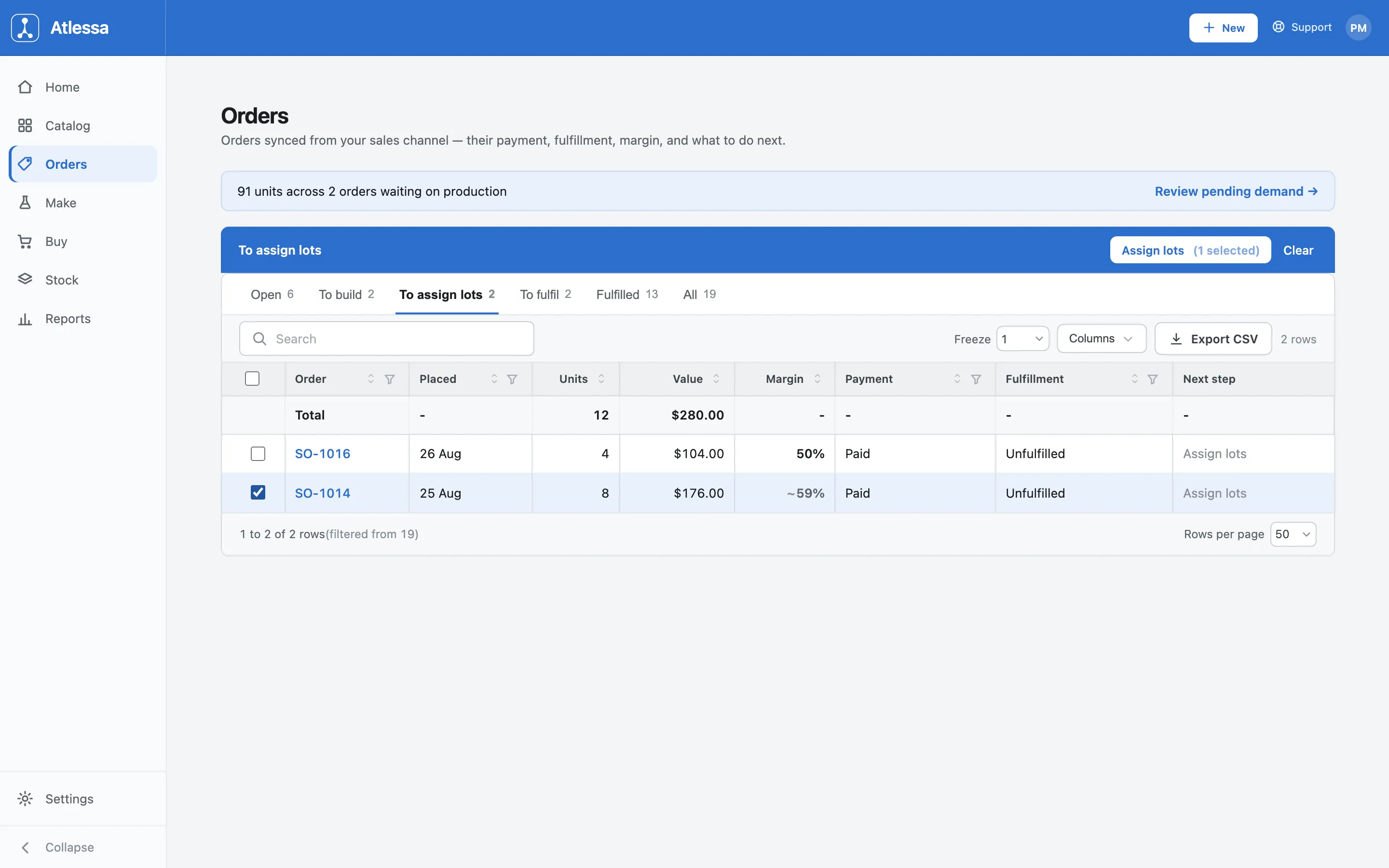
One order from the list: tick it and the strip offers Assign lots. - In bulk, across a queue.
The same strip works on many orders. Tick several rows (or the header box for the whole queue) and run Packing list or Fulfil in Shopify across all of them, so a full To fulfil queue becomes one pass. The strip shows how many orders each action will touch (2 selected here).
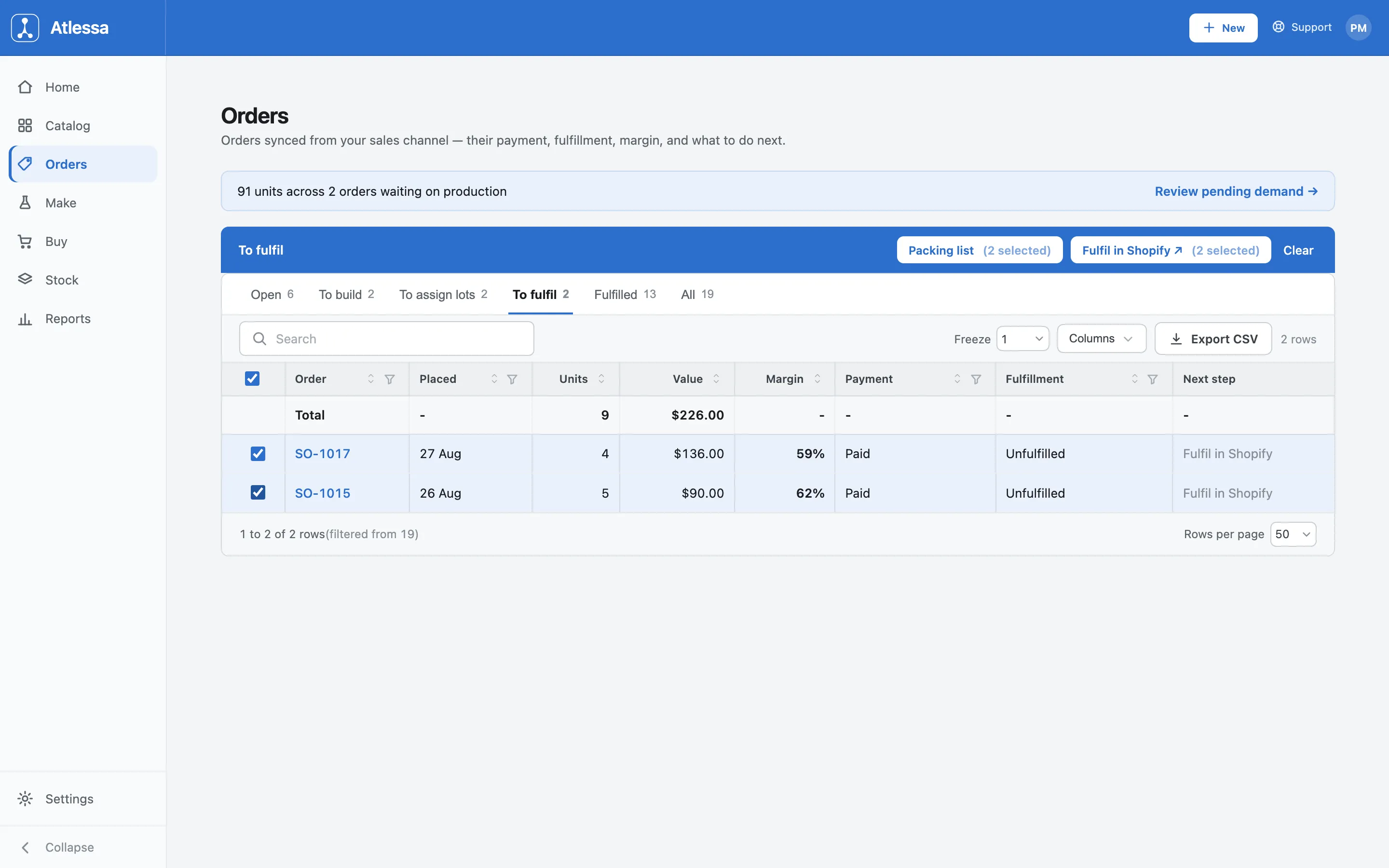
In bulk: the strip runs Packing list or Fulfil in Shopify across all selected. - Shopify first, then synced back.
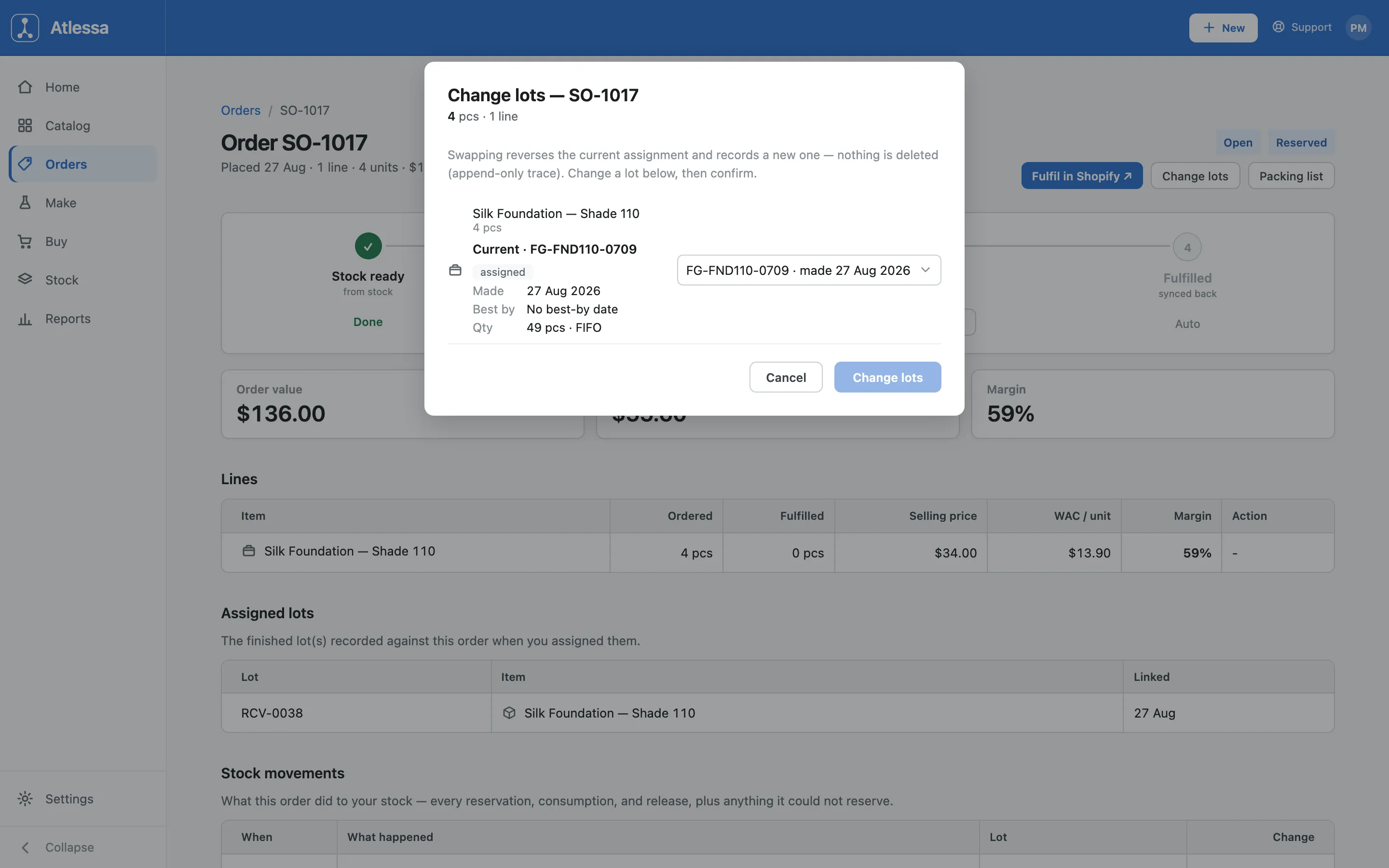
Fulfil an order in Shopify before assigning lots and the fulfilment still syncs back and closes it. With no lot scanned, Atlessa auto-assigns by rotation (oldest first) so stock still draws down and the trace still points somewhere. That auto-assignment is an Estimate, not scan confirmed, the same distinction as in Trace a lot. To make it Exact, or ship a different lot, use Change lots.
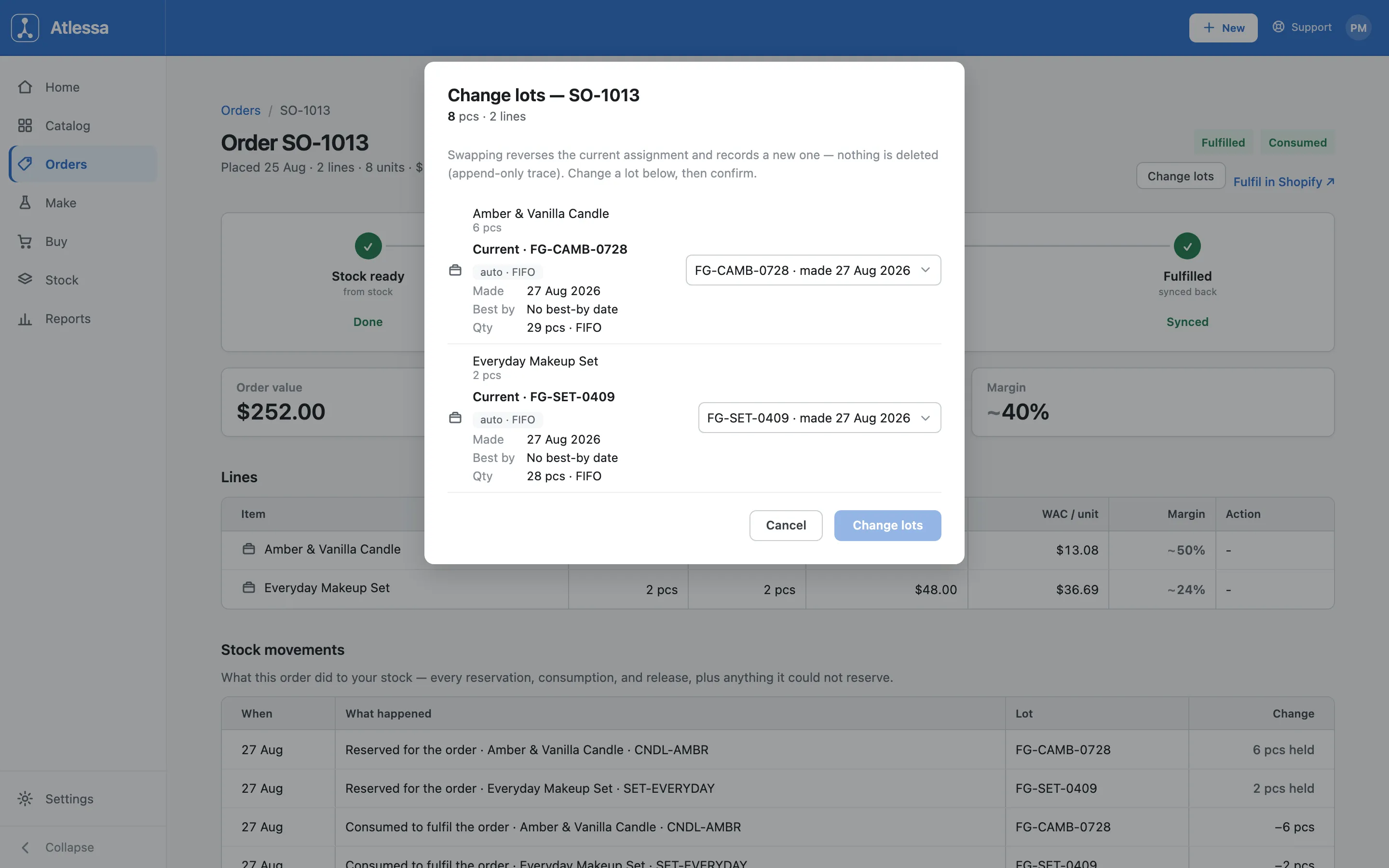
Shopify-first: Change lots shows each lot auto-assigned by rotation (auto, FIFO), an Estimate to confirm or swap.
- fix a wrong lot;
- correct a Shopify-first order that was auto-assigned;
- ship a specific batch, for example one approaching its control date.
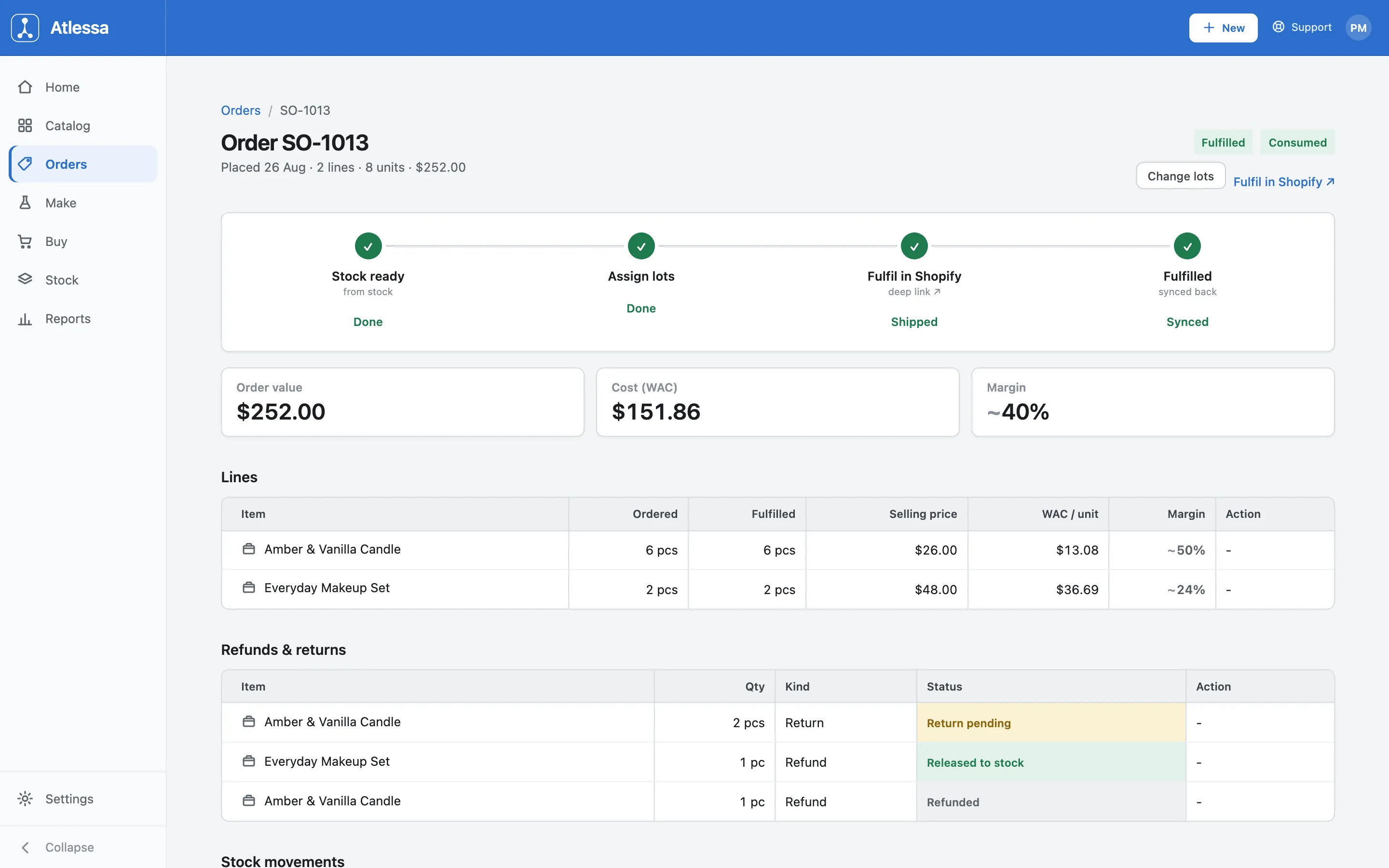
- Refunded: financial-only. The money went back, no stock moved.
- Released to stock: a cancel-type refund freed the reservation, so the units returned on their own (shown as "Released after cancellation" in the ledger).
- Return pending: a physical return on its way back, awaiting your inspection. This one needs you.
Common questions
- Why does Atlessa not fulfil for me?
- Shopify is the system of record for orders and shipping, so it owns the fulfilment and the label (see What Atlessa is). Atlessa keeps the stock and lot trace correct around it: check the stock, reserve the exact lots, hand off through the deep link, then read the fulfilment back. One place for shipping, one for stock, no double entry.
- What is Assign lots, and how is it different from just fulfilling?
- Fulfilling is the Shopify step that ships the parcel. Assigning lots is the Atlessa step just before it: recording which finished lot covers each line. That link (the pack capture) makes the trace Exact rather than an oldest-first Estimate, the same distinction in Trace a lot. Skip it and the trace still works, but as an inference, not a scan-confirmed fact.
- What does "short" (or To build) mean, and what do I do?
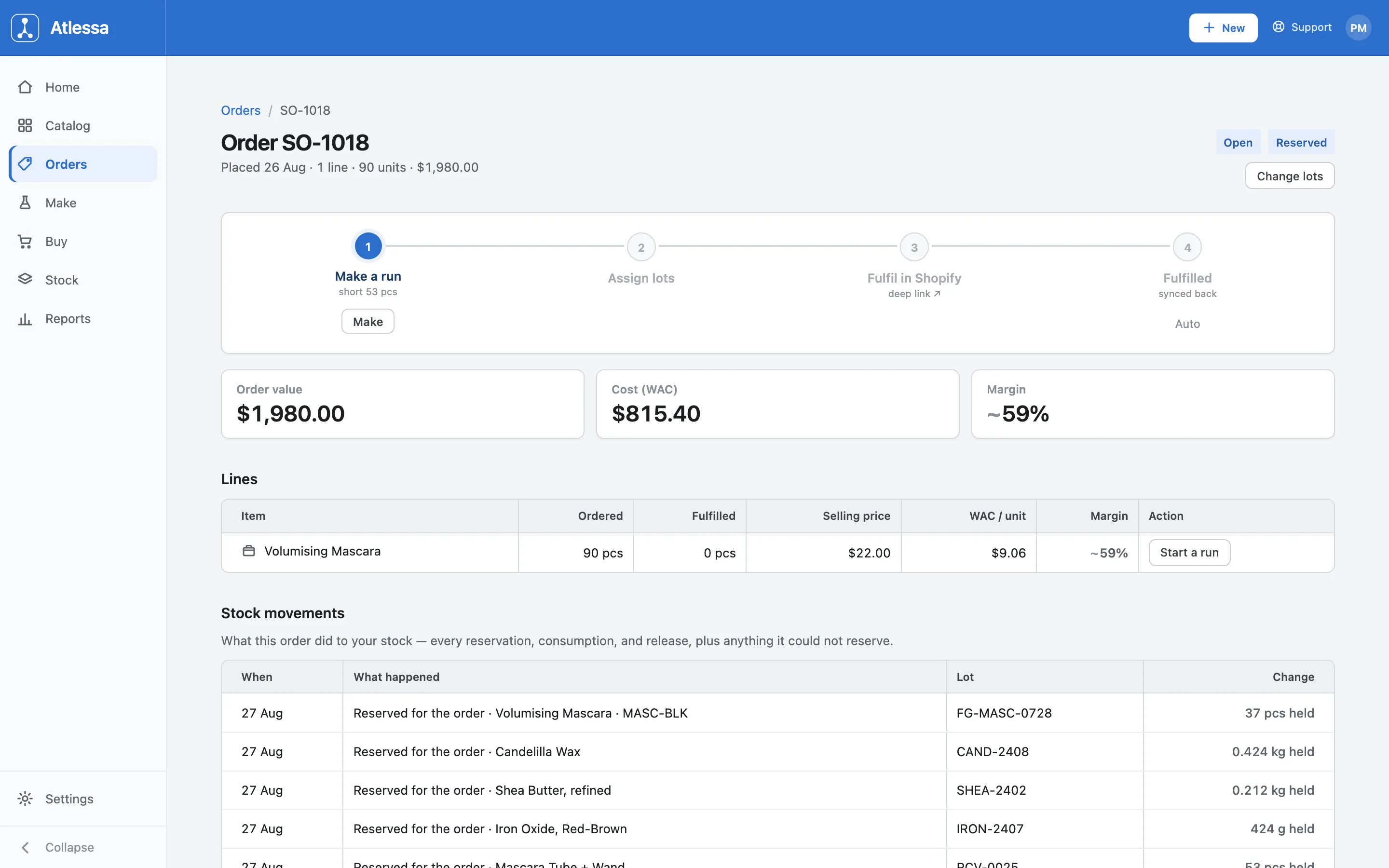
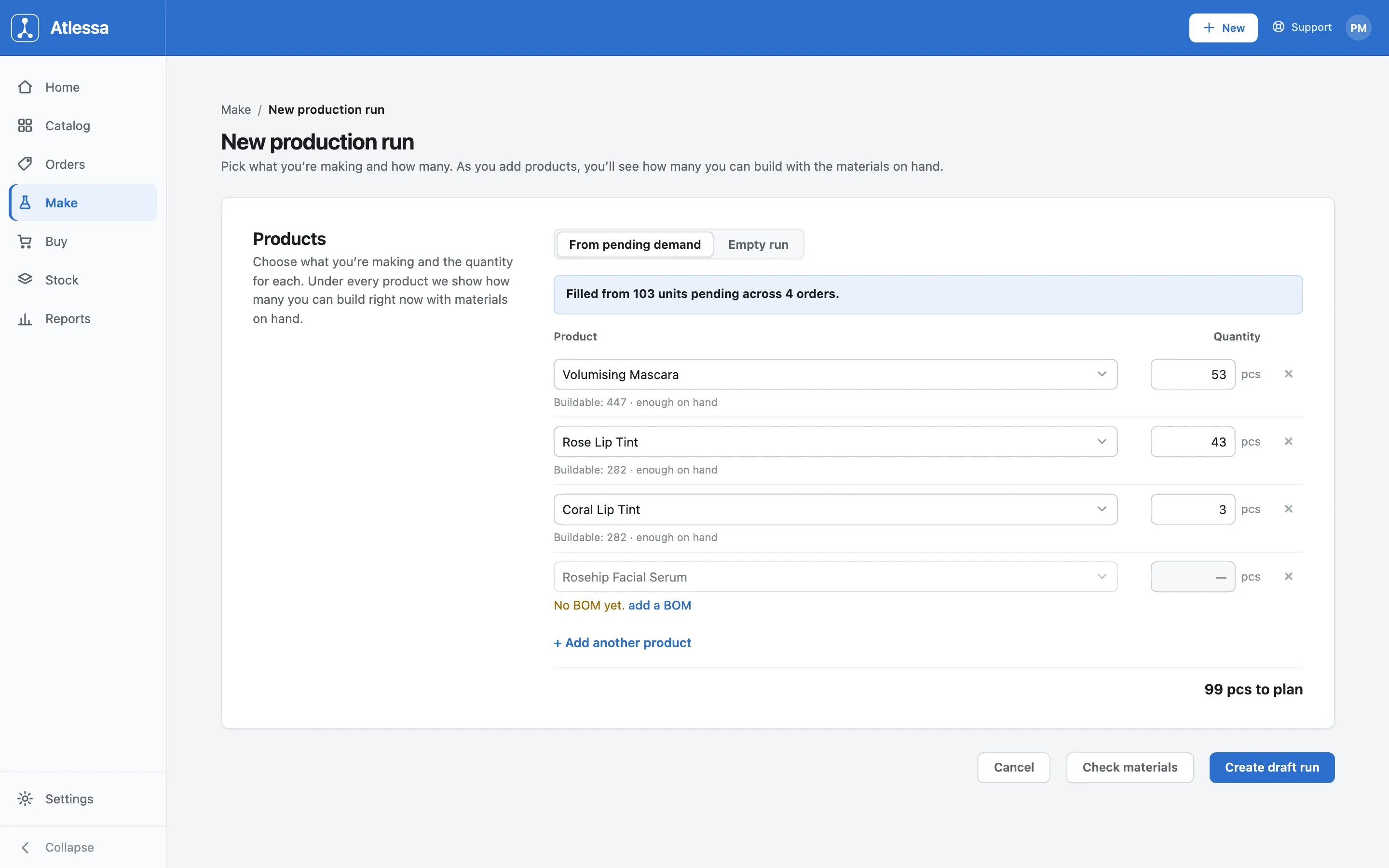
- Short means you lack enough finished stock for a line, so the order sits in To build and starts at Make a run. Send the missing units to production (Make, or Start a run on the line): a draft run prefilled from pending demand. When it closes, the units reserve to the order and it moves to Assign lots.
- Some lines are ready and some are short.
- Assign the ready lines now and send the short ones to a run; assigning is per line, so the units you have do not wait on the ones you must make. In the list, a mixed order whose ready lines still need lots reads Assign + make. Once you have assigned them and only the short line is left, it reads Fulfil + make and cross-lists into To fulfil as Fulfil partial, a reminder to ship only the ready units.
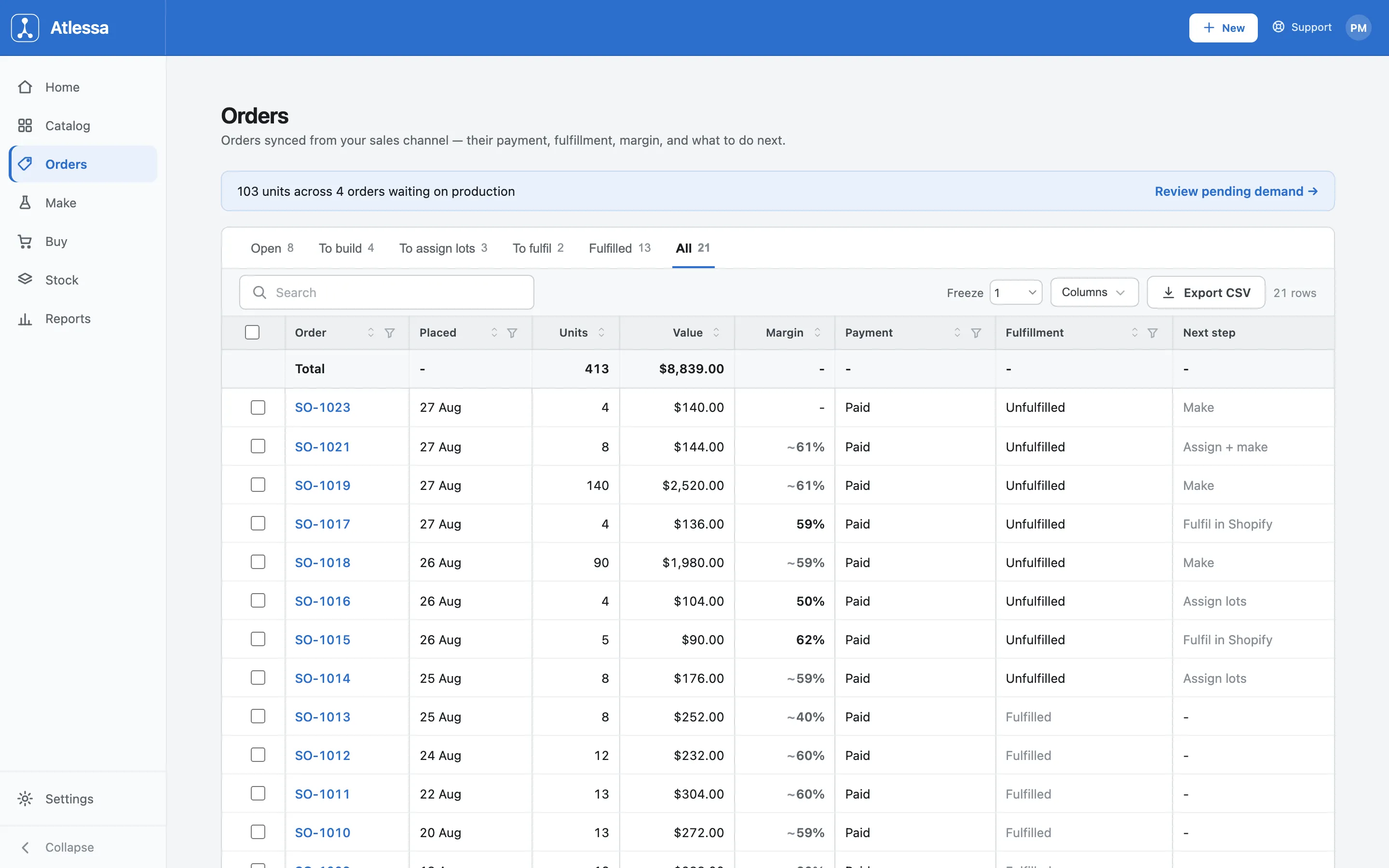
A mixed order (one line reservable, one short) reads Assign + make. - Where does the margin come from?
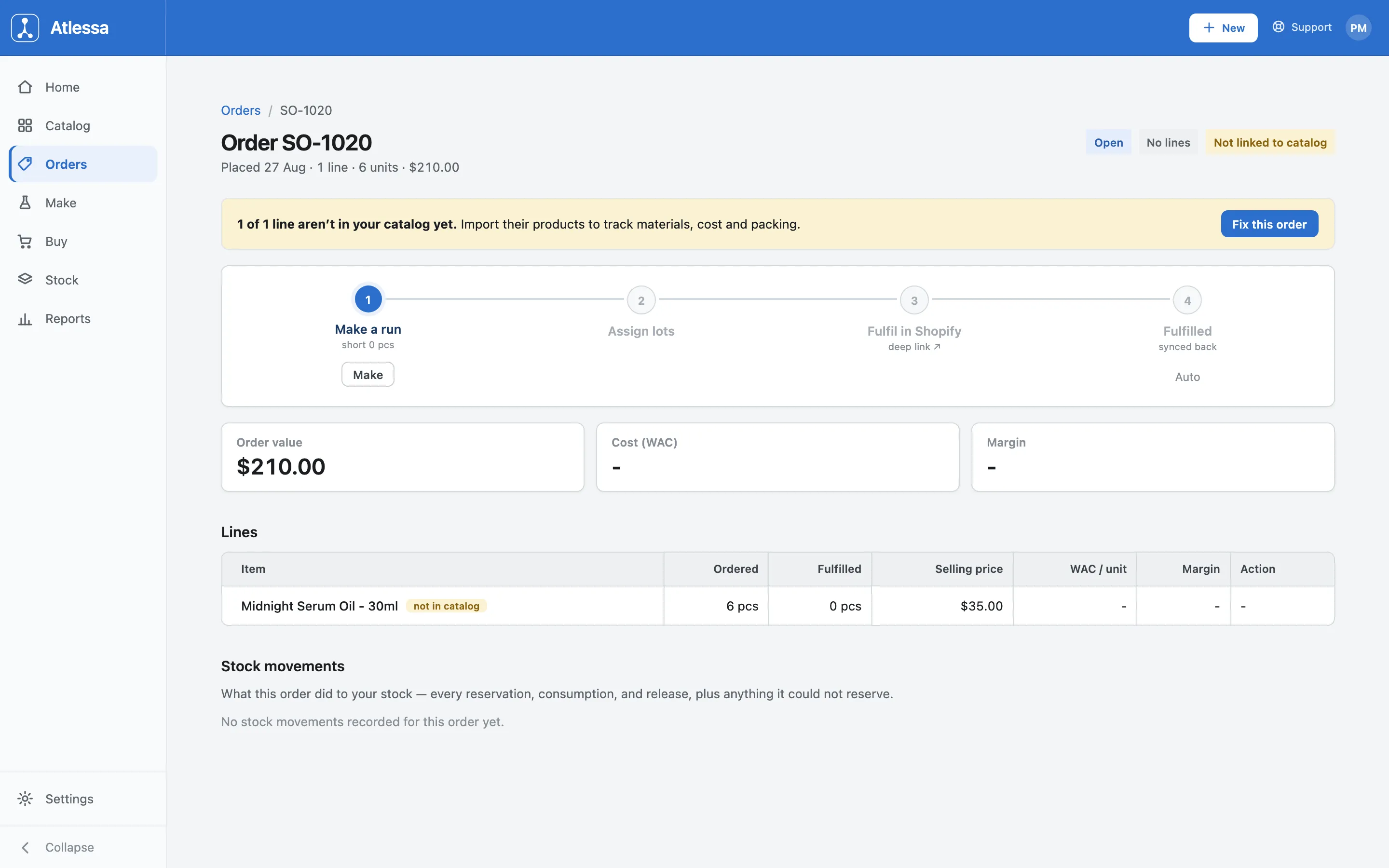
- Selling price comes from Shopify; cost is your weighted average cost (WAC) for the lots that ship. Atlessa shows both, per line and per order, so the margin is what the order actually made once its real lots are assigned. An order not yet mapped to your catalog shows no cost or margin until you add its products.
- What is the Packing list for?
- The pick sheet for the stock to pack, one section per order, with the SKU, the quantity, and the assigned lot. Match each sheet to its Shopify label by order number. Print it or download a PDF, and pull one list across several orders for a packing run.
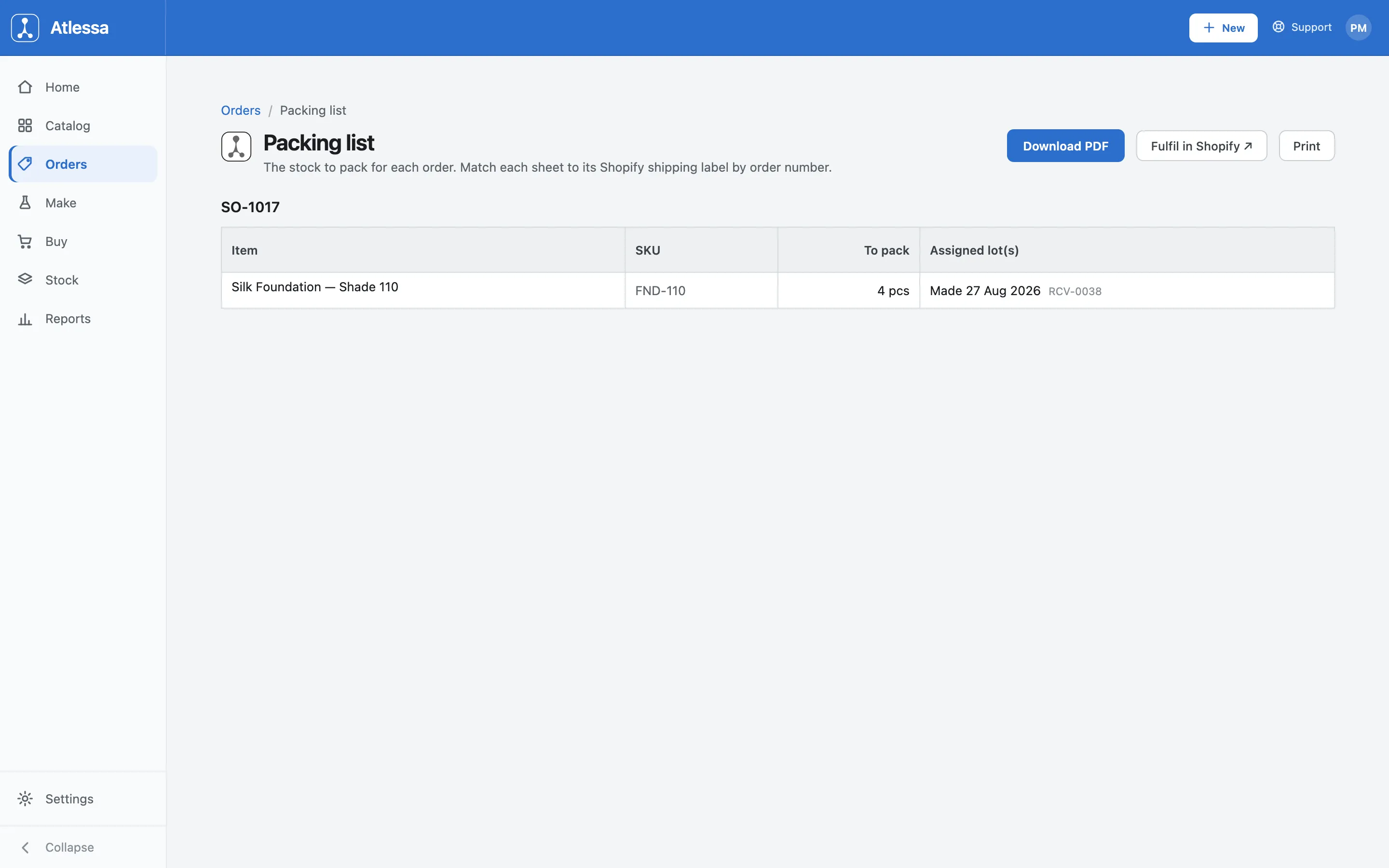
The Packing list for SO-1017: what to pack, the SKU, and the assigned lot. - Can I fulfil part of an order?
- Yes. Assigning is quantity aware, so you cover the units you have and leave the rest. A partially covered line stays unfulfilled for the shortfall, which you send to a run, while the assigned units ship. When you fulfil a batch that includes a part-ready order, Atlessa warns you first and has you ship only the ready units, each packing list marking which to send.
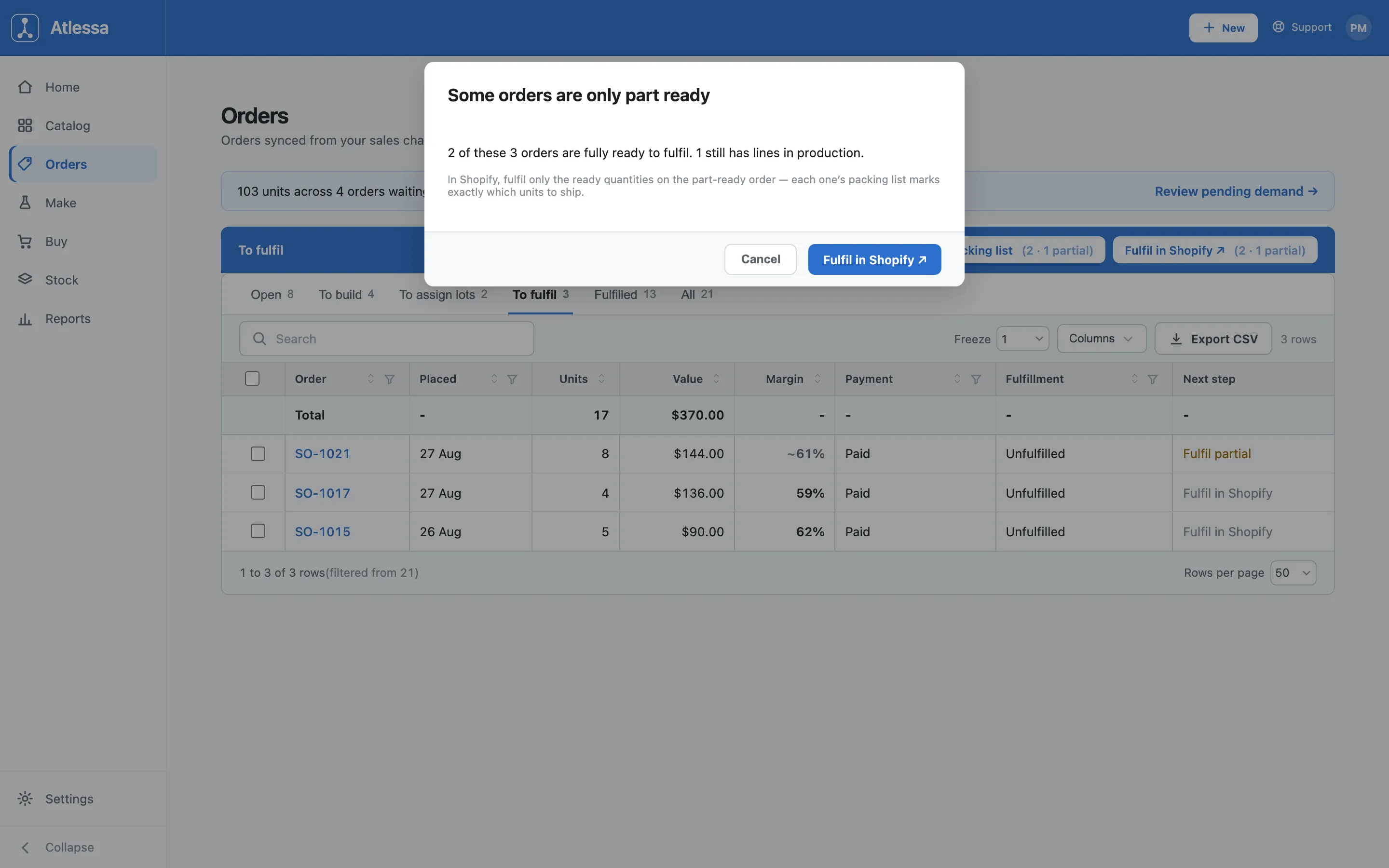
Fulfilling a queue with a part-ready order: Atlessa flags it so you ship only ready units. - What about a cancelled order?
- A cancelled order is terminal: no next step, nothing to fulfil, so it drops out of the Open queues. Cancelling also releases any reservations it held, which you see in the ledger as "Released after cancellation" and on the Refunds & returns table as Released to stock.
- A customer returned something, is the stock back?
- It depends on the refund kind, which the Refunds & returns table spells out. Refunded moves no stock. Released to stock (a cancellation) releases the reservation automatically. A physical return shows as Return pending, and here Atlessa does not restock for you: you inspect the units and book them back yourself, by adjusting the lot up or receiving them in (see Correct and adjust stock).
If it is not working
- The order shows short.
- You lack enough finished stock for a line. Start a run for the missing units from the stepper or the line; once it closes they reserve to the order and it moves to Assign lots.
- I fulfilled in Shopify but Atlessa still shows it open.
- The fulfilment syncs back on its own, usually within a minute; the order catches up on the next sync or poll even if the webhook lagged. Reopen the order to refresh it. (Settings, then Sync, will not help: it reports stock write-back health, not order ingestion, and can read Healthy while an order webhook is still catching up.) Contact support if it persists.
- The lot I want is not in the picker.
- The picker lists only in-stock, non-lapsed finished lots of that variant. If yours is missing, it may be out of stock, lapsed, or quarantined; make a run, or check the lot's status in Stock.
- The order says "Not linked to catalog".
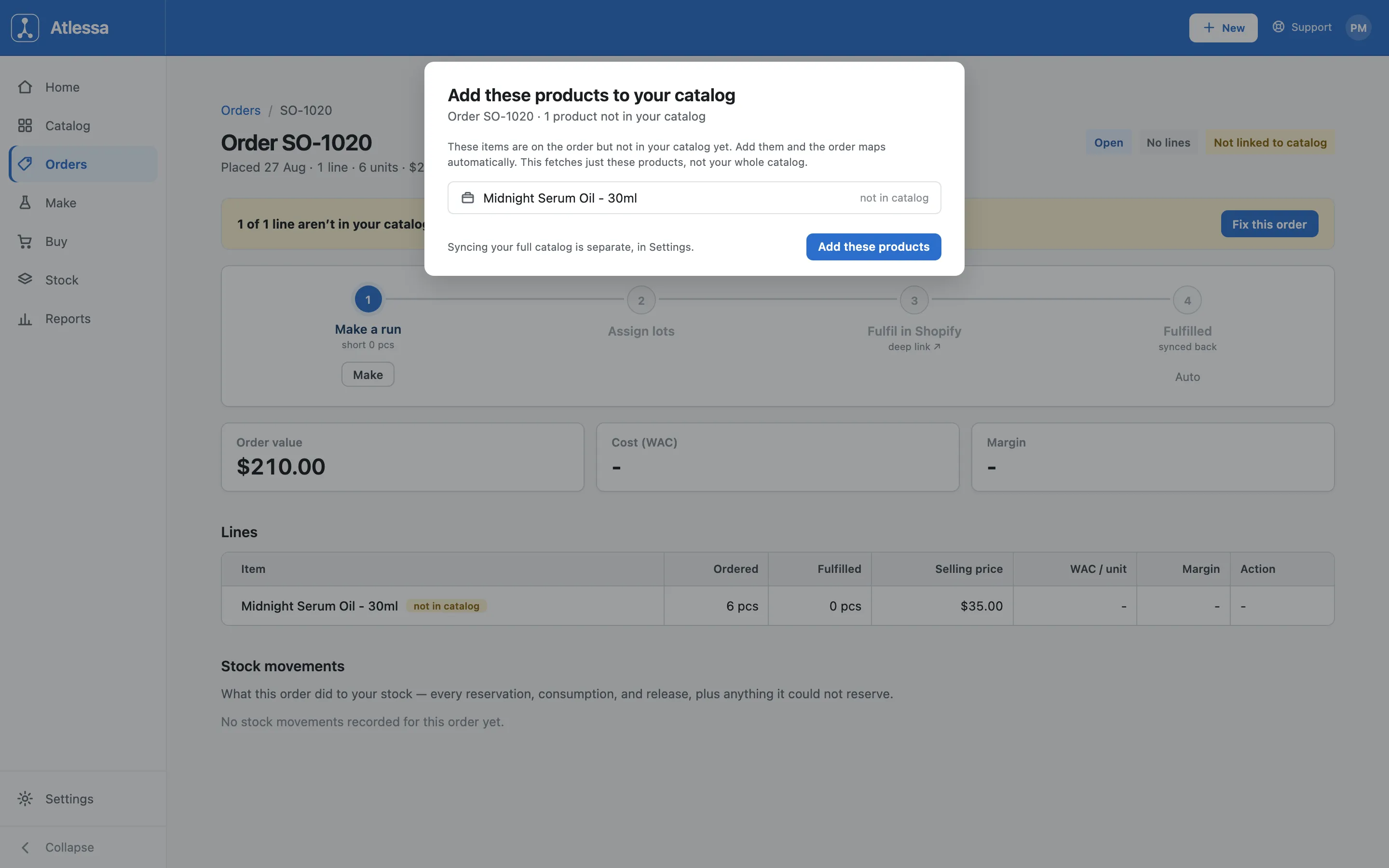
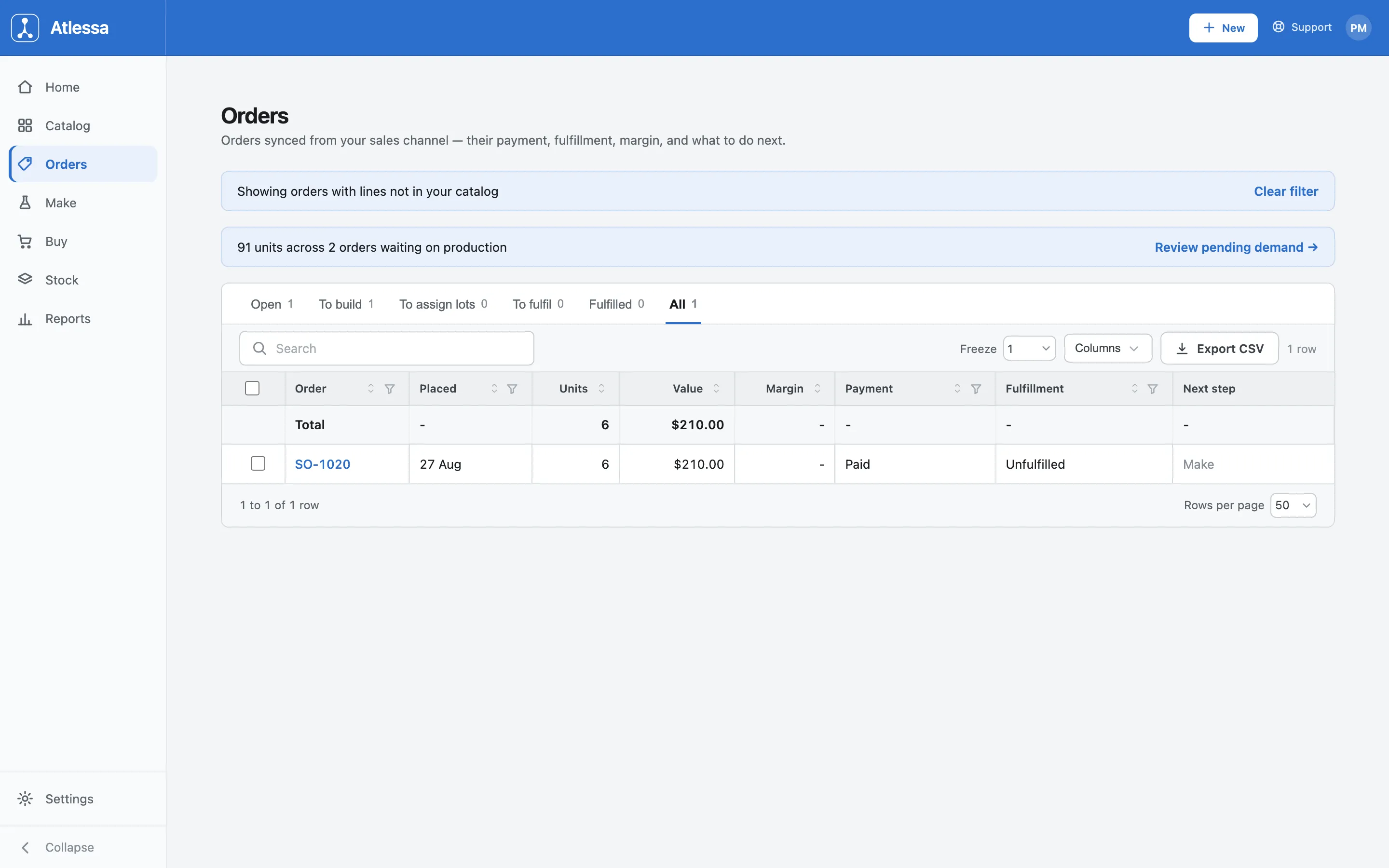
- A line's Shopify product is not in your catalog, so it cannot be reserved or costed. Click Fix this order to add those products, then assign or fulfil as usual.