Materials
Materials are the ingredients, components, and packaging your production runs consume. They live in the same Catalog as your products, but they are not sold, so they carry a stock unit and a cost but no selling price, no margin, and no Shopify sync. Open any material and its whole story sits on one tabbed page, from live stock to every draw a run ever made against it.
- Material: an ingredient, component, or packaging your runs consume, not something you sell.
- Packaging: a material category for tubes, cartons, labels, and jars.
- Storage unit (or stock unit): the unit you count and store a material in (kg, ml, pcs). The purchase unit is the unit you usually buy it in, which converts to the storage unit.
- Trace mode: whether you track the material by SKU or by batch/lot.
- Category: Consumable or Packaging, for how it is grouped in reports.
- WAC (weighted average cost): the unit cost of the stock you hold, set by what you pay on receipts.
- Supplier batch: the code on a delivery, kept against each received lot.
Steps
- Find materials in the Catalog, under the Material type.
Materials sit in the same Catalog as products, under the Material type (packaging is its own type alongside). The list has the same columns as the product view (Name, SKU / code, Type, On hand, Selling price, WAC / unit, Calculated margin, Sync), but a material fills them differently: it shows a stock quantity and a WAC, and leaves selling price and calculated margin blank. That is the whole difference on one line: a material is an input your runs consume, so it has a cost but no price and no margin. Raw materials read RM-* codes, packaging PK-*: Amber & Vanilla Fragrance (RM-FRAG-AMBER) 3,800 ml at $0.50 WAC, Candelilla Wax (RM-CANDELILLA) 26.9 kg at $70.00, Coconut-Soy Wax (RM-CSWAX) 60 kg at $12.00.
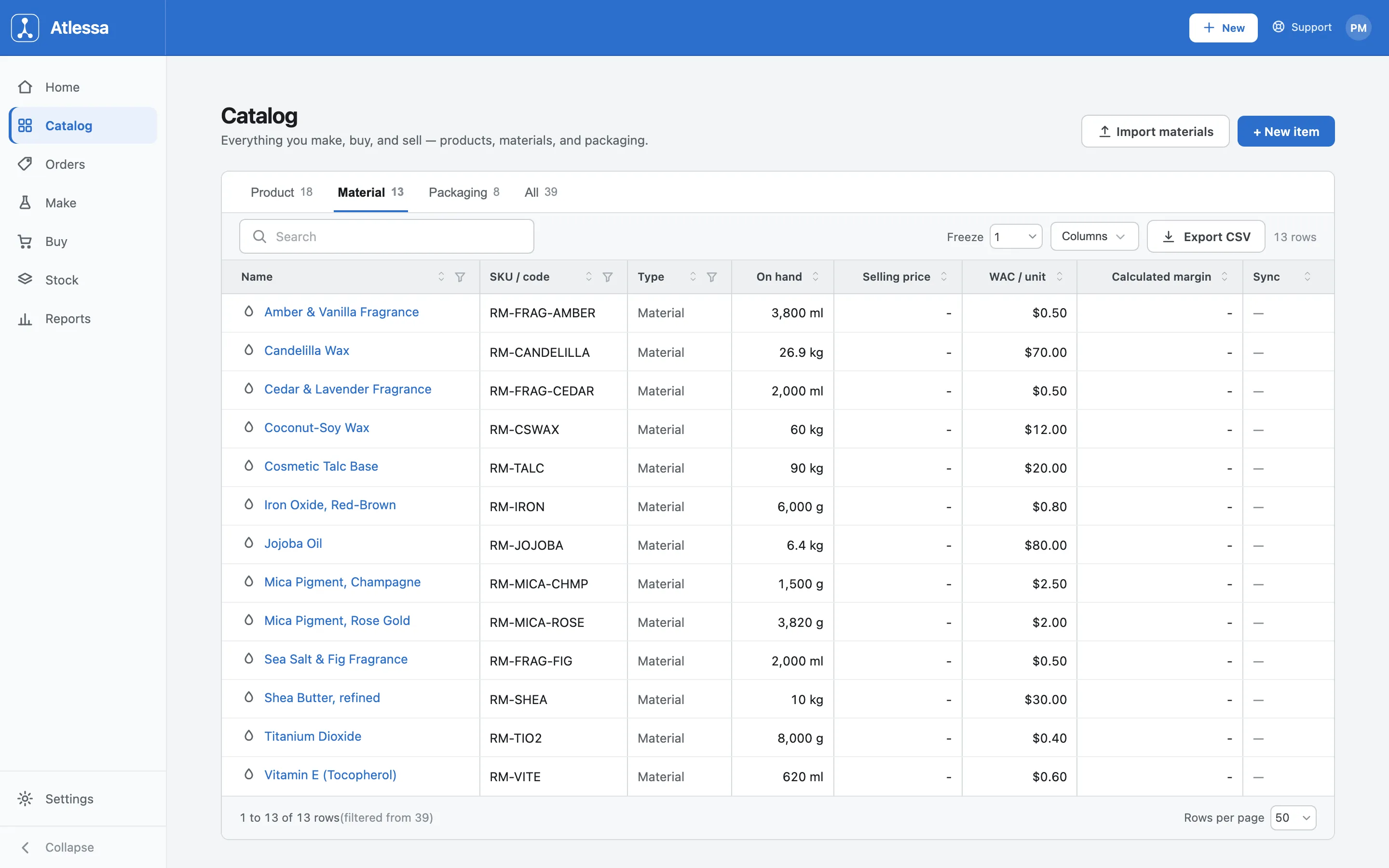
The Catalog filtered to Material: the same columns as products, but a stock quantity and WAC with no selling price and no margin. - Set up a material with + New item.
Click + New item to open the New material form ("Set up something you buy or make, how you count it, and where it shows up in your reports"). Three sections:
- Identity: a Name and a SKU. The SKU is optional (add one later), though a clear one helps clean mapping.
- Units & tracing: a Storage unit (how you count and store it), an optional Purchase unit defaulting to "Same as storage unit", and a Trace mode of SKU or Batch.
- Classification: the Category, Consumable or Packaging, just how it is grouped in reports. Defaults to consumable; change it any time.
A fourth group, Control date, appears once trace mode is Batch: choose the control-date type (Expiry, Best before, or Use by) and whether it is hard or soft. This is the material's item-level control date, the one place How batches and lots work means by "set the control date once on the item". Each received lot is watched against it: a hard date blocks receiving expired stock, a soft one only warns. Finished goods set theirs on the product's Edit sheet instead. Cancel or Create material at the foot.
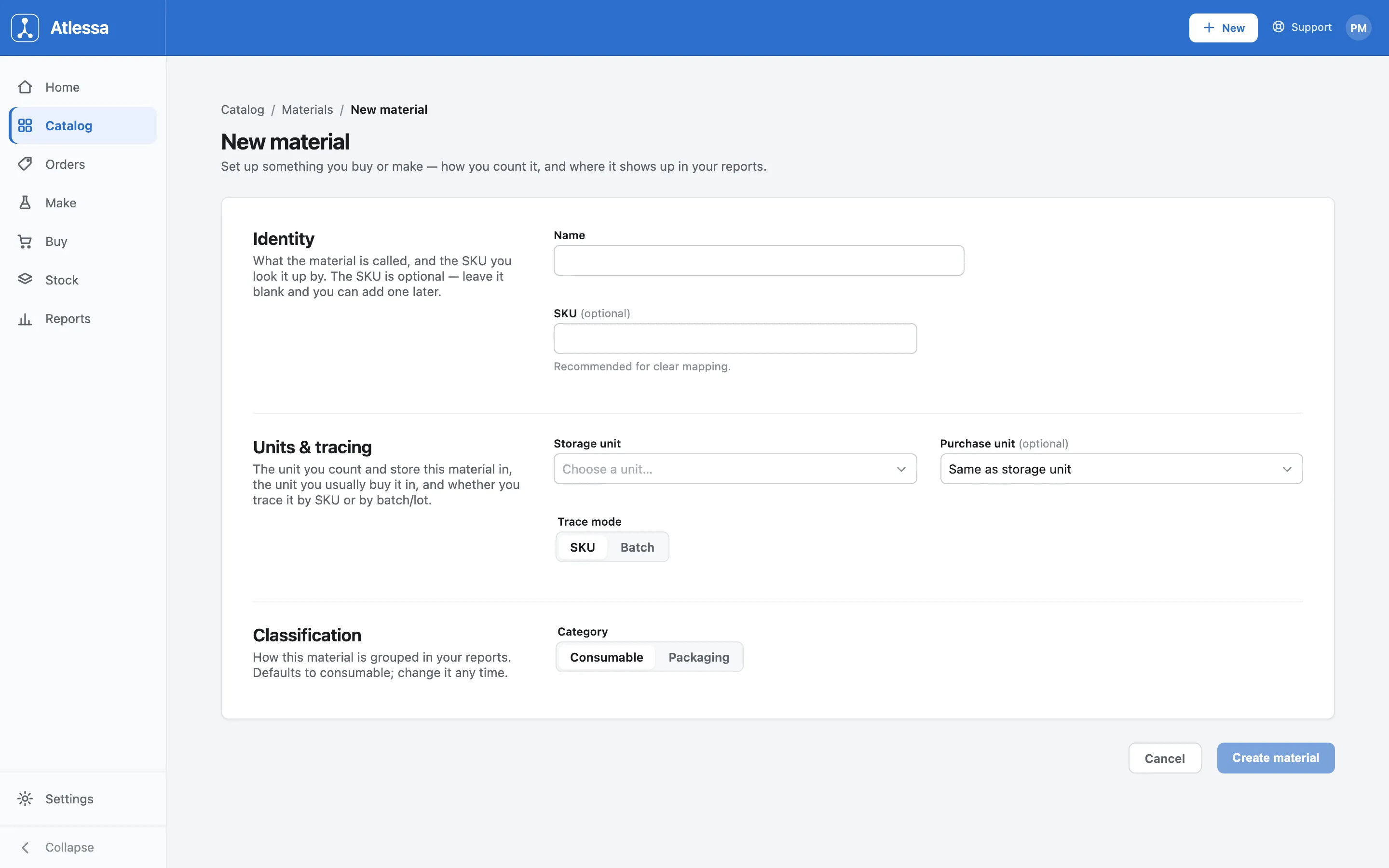
The New material form: Identity, Units & tracing (storage unit, purchase unit, trace mode), and Classification. - Open a material to its tabbed page.
Click any material to open its item page (here Jojoba Oil, SKU RM-JOJOBA), with a Catalog breadcrumb, an Edit button, and tabs: Details, Lots, Ledger, Costs. There is no Recipe / BOM tab, because a material is an input, not made from a recipe. The Details tab leads with four KPI cards, all in the stock unit:
- On hand 6.4 kg: your total stock.
- Committed 0.19 kg: what is reserved to a run or order.
- Available 6.21 kg: what is free (on hand = committed + available).
- Unit cost $80.00: its WAC.
The full buckets model lives in How batches and lots work. Below the cards, an identity table names the item: Type Material, SKU RM-JOJOBA, Internal code RM-JOJOBA, Stock unit kg. No Shopify sync line, because materials are not sold or synced.
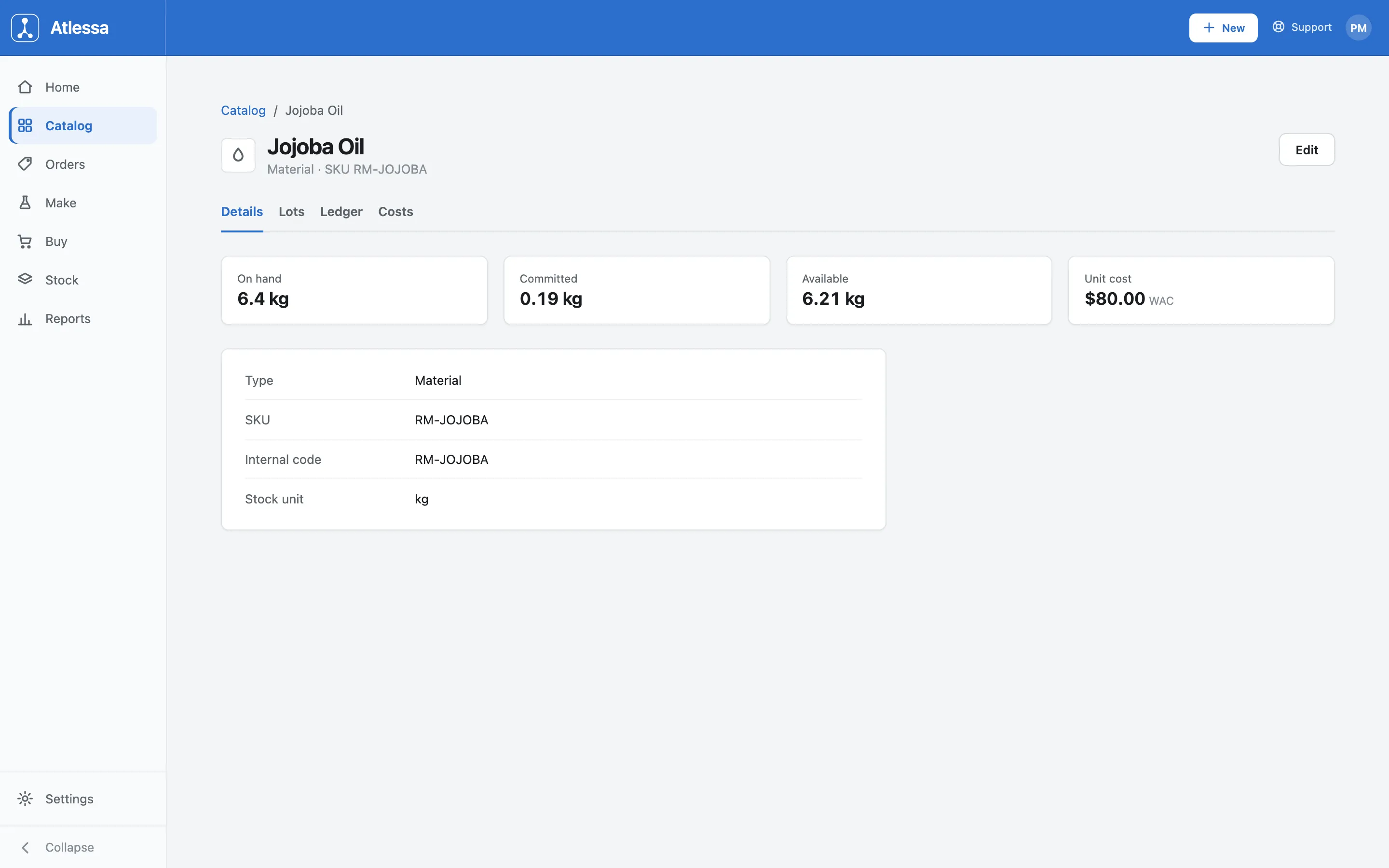
A material's Details tab: on hand, committed, available, and unit cost at WAC, then the identity table with no Shopify sync line. - Lots tab: every received batch in stock.
The Lots tab lists every batch of the material you hold ("Batches, 6.4 kg across 2"), keyed by the supplier batch code on each delivery. Every received delivery is one traceable lot. Each row carries its Received date, Available and Committed, any Quarantined units, Value / unit and Lot value, and a Control date. So lot JOJ-2409 was received 30 Jul 2026 with 3.21 kg available and 0.19 kg committed, at $80.00 a unit ($272.00 for the lot), control date 24 Apr 2027; lot JOJ-2415 received 18 Aug 2026 with 3 kg at $240.00. Status filter tabs across the top (All, In stock, Flagged, Lapsed, Not yet available, Quarantined, Approaching, plus a "Hide fully consumed" toggle) sort batches by how they stand against their control date. A Receive stock button receives a new batch from here.
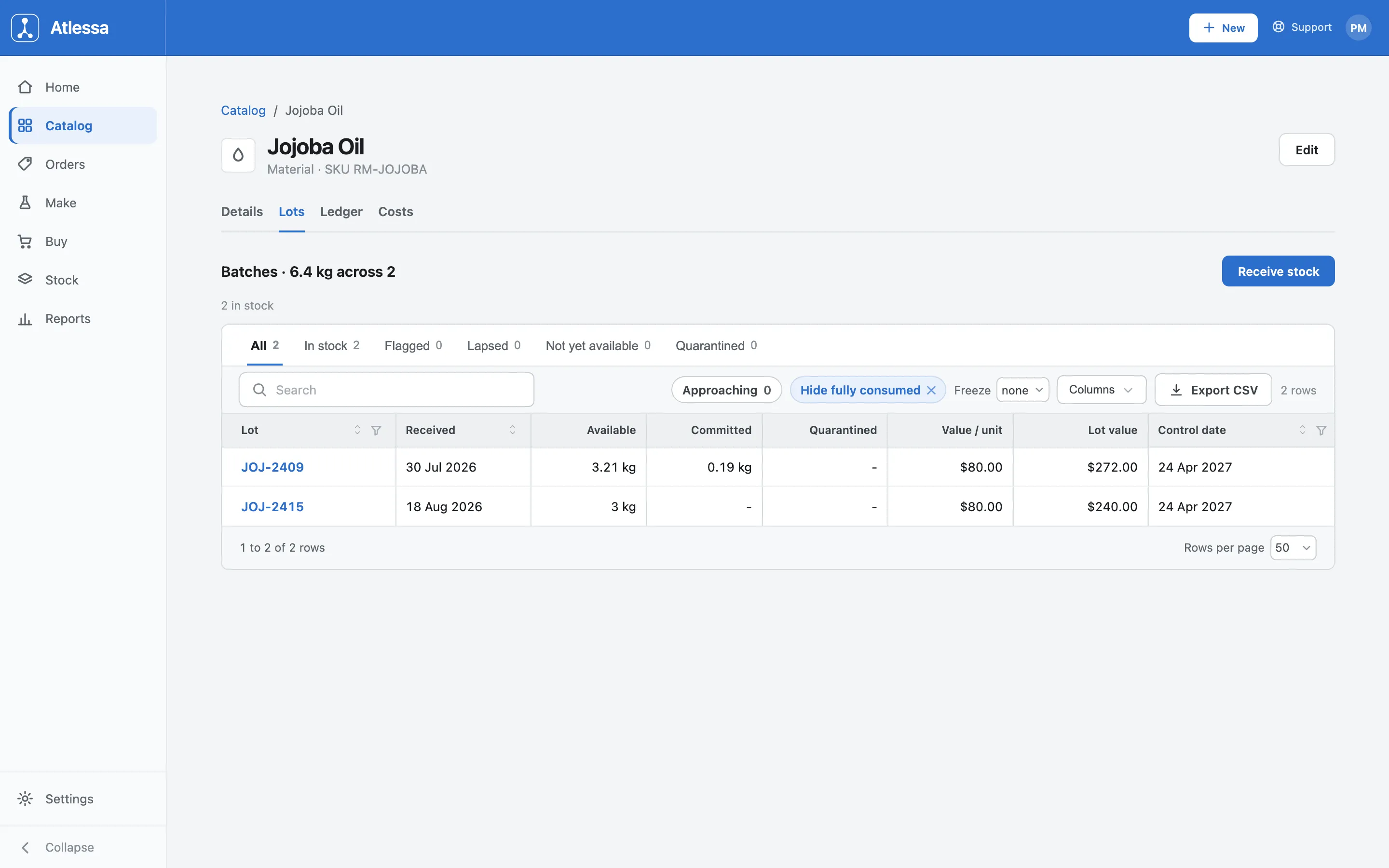
The Lots tab: every batch keyed by supplier batch code, with available, committed, value, and its control date and status. - Ledger tab: the material's whole history.
The Ledger tab is every movement that ever touched this material's stock, read bottom-up as its life story: received, then drawn into each run that used it and reserved to orders, each line carrying a running Balance and the run or order Reference. It opens with the receipt (RCV-0001, +11 kg), then a draw into each run (Used to make Lip Tint Base, minus 4 kg, RUN-1-A), down to a reservation against an order (0.19 kg, SO-1019). It is the material flowing from receipt into production, every draw tied to the run that used it. Searchable, exports to CSV (Date, Movement, Qty, Balance, Reference). It is the audit trail behind the KPI cards: it explains exactly how on hand and committed got where they are.
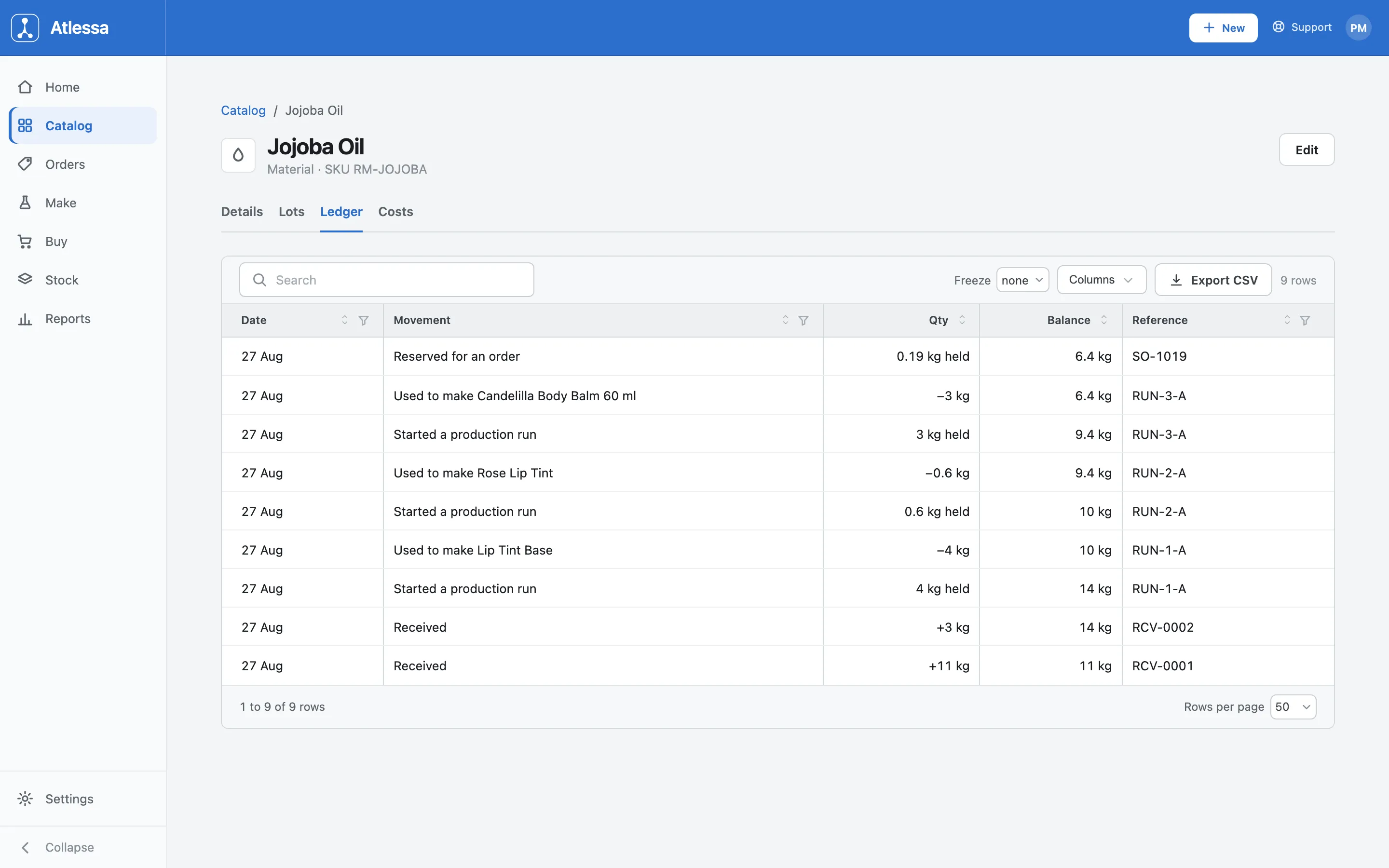
The Ledger tab: the material's whole history, received then drawn into each run and reserved, with a running balance and reference.
Common questions
- What is the difference between a material and a product?
- A product is a thing you sell; a material is an input your runs consume (ingredient, component, or packaging). They share the Catalog and the same tabbed page, but a material is not sold, so it has a stock unit and a WAC but no selling price, no margin, and no Shopify sync, and no Recipe / BOM tab because it is not made from a recipe.
- Why do materials have no selling price or margin?
- Because you never sell them. Price and margin only mean something for a product you put in front of a customer. A material is consumed inside your runs, so the number that matters is its cost (the WAC), which flows into the cost to make of the products it goes into. That is why the Catalog leaves its price and margin blank.
- What is the difference between a storage unit and a purchase unit?
- The storage unit is how you count and store the material (kg, ml, pcs). The purchase unit is how you usually buy it, which can differ (a case, a sack). When they differ, enter the buy amount at receiving and Atlessa converts it into your storage unit. Buy and store in the same unit, and the purchase unit stays "Same as storage unit".
- What does trace mode do, and when do I pick SKU versus Batch?
- It sets whether you track the material by SKU or by batch/lot. A Batch-traced material records a lot code and, where it carries one, a control date at receiving, so each delivery becomes a traceable lot (this ties into Receive stock and Trace a lot). A SKU-traced one does not. Use Batch for anything you need to trace or watch against a best-by (most raw ingredients); SKU is fine otherwise.
- Where does a material's WAC come from?
- From your receipts, not anything you type on the material. WAC is the weighted average of the landed cost per stock unit you pay on each receipt, blended by quantity. A material with no receipt has no cost; receiving cheaper or dearer than your average pulls the WAC down or nudges it up. To revalue it, receive at the right landed cost, not edit a field here.
- What is the difference between the Consumable and Packaging category?
- Category is just how the material is grouped in reports. Consumable is the default (ingredients and components); Packaging is for tubes, cartons, labels, and jars. It does not change behaviour: packaging is received, costed, committed, and consumed like any other material. Change it any time.
- How does a material get consumed?
- Production runs draw it. When you make a batch, each material in the product's bill of materials is drawn down by what the run uses, shown in the ledger as "Used to make ..." against that run. It can also be reserved to an order waiting to be made. Either way the draw shows in the ledger with a running balance and the run or order that caused it.
- How do I edit or retire a material?
- Edit it from the Edit button on its item page, changing name, units, trace mode, or category. A material is never hard-deleted: it follows an active/archived lifecycle, so one you stop using is archived, not removed, keeping its lots and ledger intact. While editing you can also set a density, so a material you buy by weight but measure into recipes by volume (or the reverse) converts between the two.
- Do materials sync to Shopify?
- No. Only finished products sync to your store, because only products are sold there. Materials are internal to Atlessa: no Shopify sync line on Details, no Sync pill in the Catalog. They exist so your runs have something to consume and your products cost correctly.
If it is not working
- A material is missing from the Catalog.
- Materials are not synced from Shopify, so you add them yourself. Use + New item for one, or Import materials on the Catalog for many at once. Once it exists you can receive stock against it.
- A material's WAC looks wrong.
- WAC is set by your receipts, the landed cost per stock unit on each delivery, so a figure that looks off usually traces to a receipt, not the material. Check the receipts, and confirm the landed cost was read per stored unit (a purchase-unit mismatch, costing a case as a single unit, is the common cause). Correct it by receiving at the right landed cost, not by editing the material.
- Available is lower than on hand.
- Some stock is committed. Available is what is free after commitments (on hand = committed + available), so when a run or order reserves part of the material, available drops below on hand. Check the Ledger tab for which run or order holds the units; it frees up as those complete or change.