The sample shop
The sample shop loads a realistic demo dataset so you can try every Atlessa screen with real-looking data, before or alongside using your real store. It is kept separate from your live data and never touches your real Shopify store or its stock, it never counts toward your setup steps, and you can clear it whenever you like. In short, it is risk free: exploring the demo changes only the sample.
Load it and explore
You load the sample shop from the Home screen, on the Sample shop & help card, by clicking Choose a sample shop. That opens a picker of several maker types, so you can pick the trade closest to yours. Every screenshot in this manual uses the cosmetics one, a small maker called Mara Lane Beauty, so the screens here line up with what you load.
What you get is a full working maker shop, not a few empty rows. It comes with its materials, its bills of materials (recipes), production runs, lots, orders, and reports, so every screen has meaningful data to work against. You can receive stock, make a batch, fulfil an order, and trace a lot exactly as you would for real.
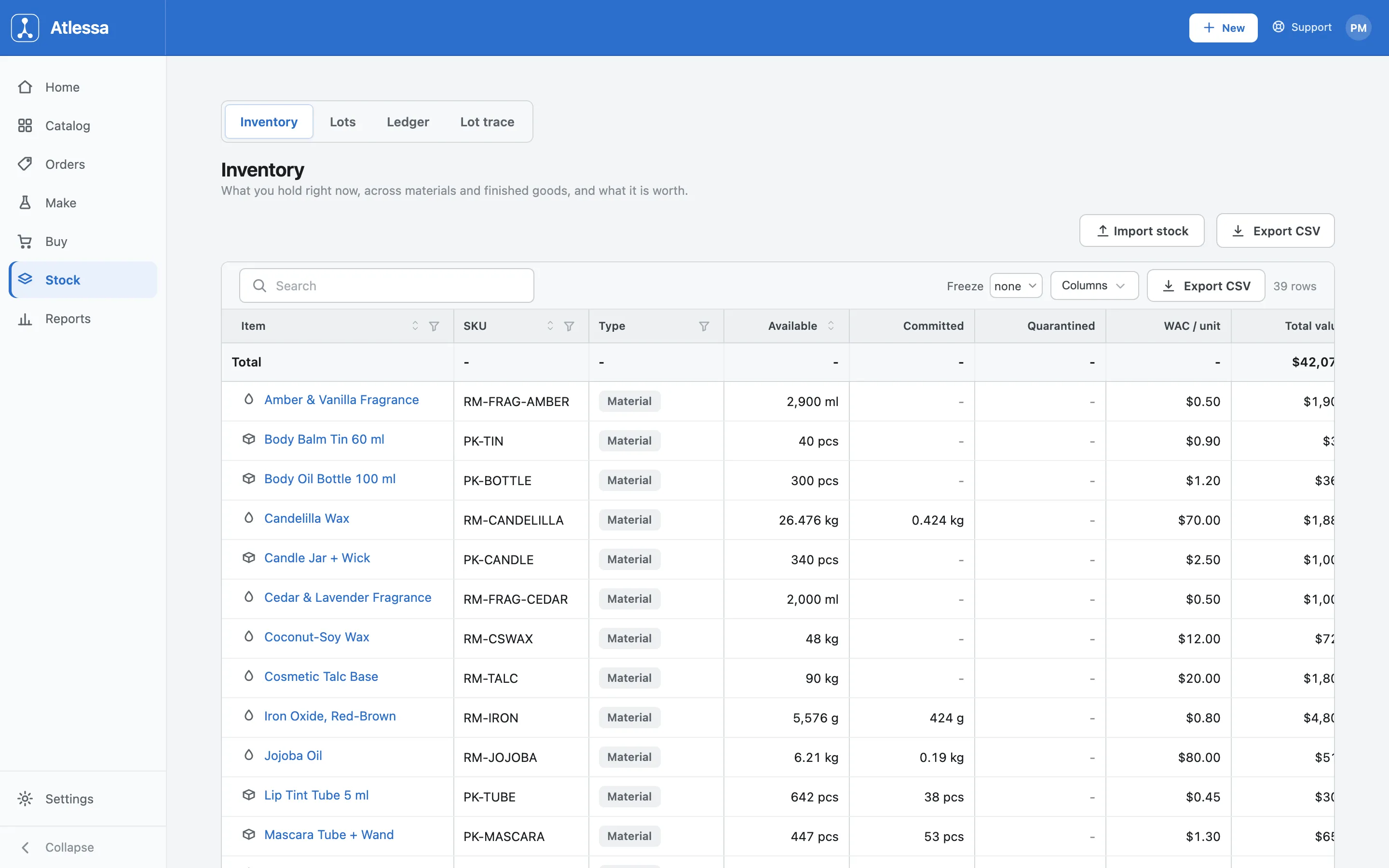
Following along in this manual
Because every screenshot comes from this same sample shop, the screens you see here match what you will see once you load it. That makes following along easy: load the sample, open the same screen, and the data lines up. It is the simplest way to learn a specific screen, since every one of them is already populated with real-looking data.
Common questions
- Will loading the sample shop affect my real store or stock?
- No. Sample data is kept separate from your real store, so nothing you do to the sample touches your live products, orders, or stock. A demo order can never land in your real books.
- Can I remove the sample data?
- Yes. The sample data is clearable at any time. Clearing it removes the demo and leaves your real data untouched.