Settings
Settings is one page with everything on it: your plan, your sync, the defaults that shape tracing and costing, and the ways to reach us. Four sections, one Save button, no menus to hunt through. This article walks all four, and points you to the deeper articles for the two big ones, billing and sync.
Steps
- Open Settings from the left rail.
Settings sits at the bottom of the left rail and opens as a single page, not a stack of sub-menus. The pills at the top (Plan & billing, Sync, Inventory & costing, Support) jump to each section, under the heading "Your plan, sync, inventory, and support in one place." Any change is staged, not live, until you press Save in the top corner. Save stays greyed out while there is nothing to save, and enables the moment you change a setting.
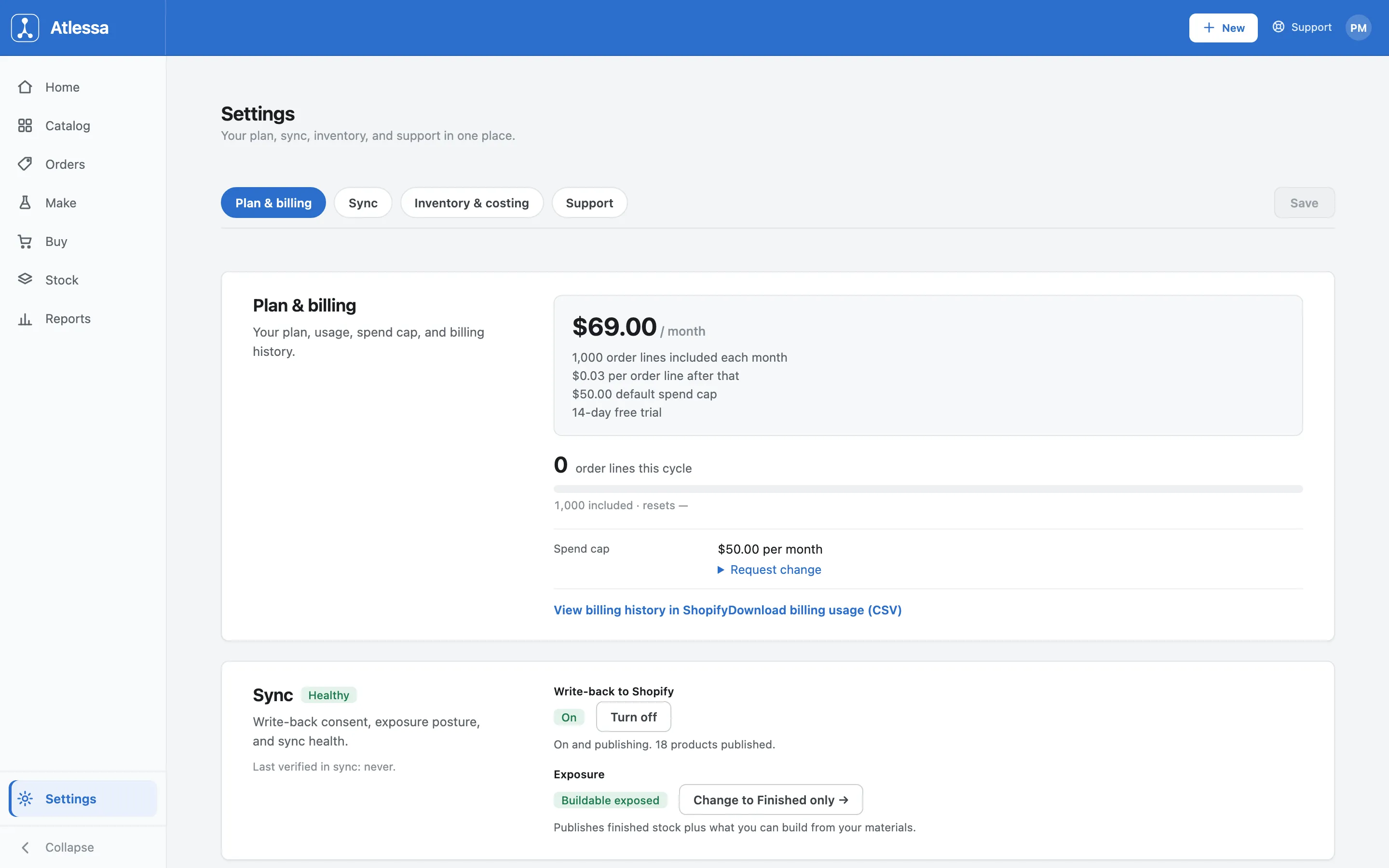
The top of Settings: the four section pills, the Save button, and the Plan & billing section with plan, usage, and spend cap. - Plan & billing: your plan, this cycle's usage, and your spend cap.
Your subscription at a glance: $69.00 a month, 1,000 order lines included each month, $0.03 per order line after that, a $50.00 default spend cap, and a 14-day free trial. Below the plan card, a usage meter shows order lines used this cycle against the 1,000 included, and a Spend cap row shows your cap with a Request change link. Two links, view billing history in Shopify and download usage as CSV, sit at the foot. For how the fee, the per-line charge, and the spend cap work, see Subscription and spend cap.
Plan & billing: the plan card, this cycle's usage meter, the spend cap with Request change, and links to billing history and the usage CSV. - Sync: write-back to Shopify and what stock you expose.
Sync holds two controls: Write-back to Shopify (on or off), your consent for Atlessa to publish stock levels back to Shopify, and Exposure: Finished only (just finished stock) or Buildable (finished stock plus what you could build from the materials you hold). It also shows sync health and when it was last verified. For how write-back and exposure play out, and what to check when a fulfilment does not sync back, see How inventory sync works.
- Inventory & costing: the defaults that shape tracing and costing.
The third section sets the defaults new materials inherit:
- Batch tracking default (Off or On): whether a new material is lot-traced from the start. It applies to new materials and to ones set to Follow shop default, and never deletes recorded batch codes (a View them link takes you to them).
- Control-date default (No default, Expiry, Best before, or Use by): which date new materials watch against.
- Enforcement (Hard or Soft): the shop default for drawing a lot past its control date. Hard blocks it, Soft only warns. Hard versus soft is an item-level choice; materials on Follow shop default inherit this setting, and expiry is always hard whatever the default.
- Low stock alert: a number of days of cover (7 here). Atlessa alerts you when stock covers fewer than that many days of recent use.
- Warn when receiving expired stock (On or Off): governs the soft case at receiving. It warns you on a past control date but still lets the receipt through. It does not override a hard control date, where an expired receipt is blocked until you record an override (a reason plus a note) regardless of this toggle.
- Lot prefixes: Receipt lot prefix (RCV-) and Production lot prefix (PRDC-), the codes new lots are numbered from. Changes apply to new lots only; existing codes are never renumbered.
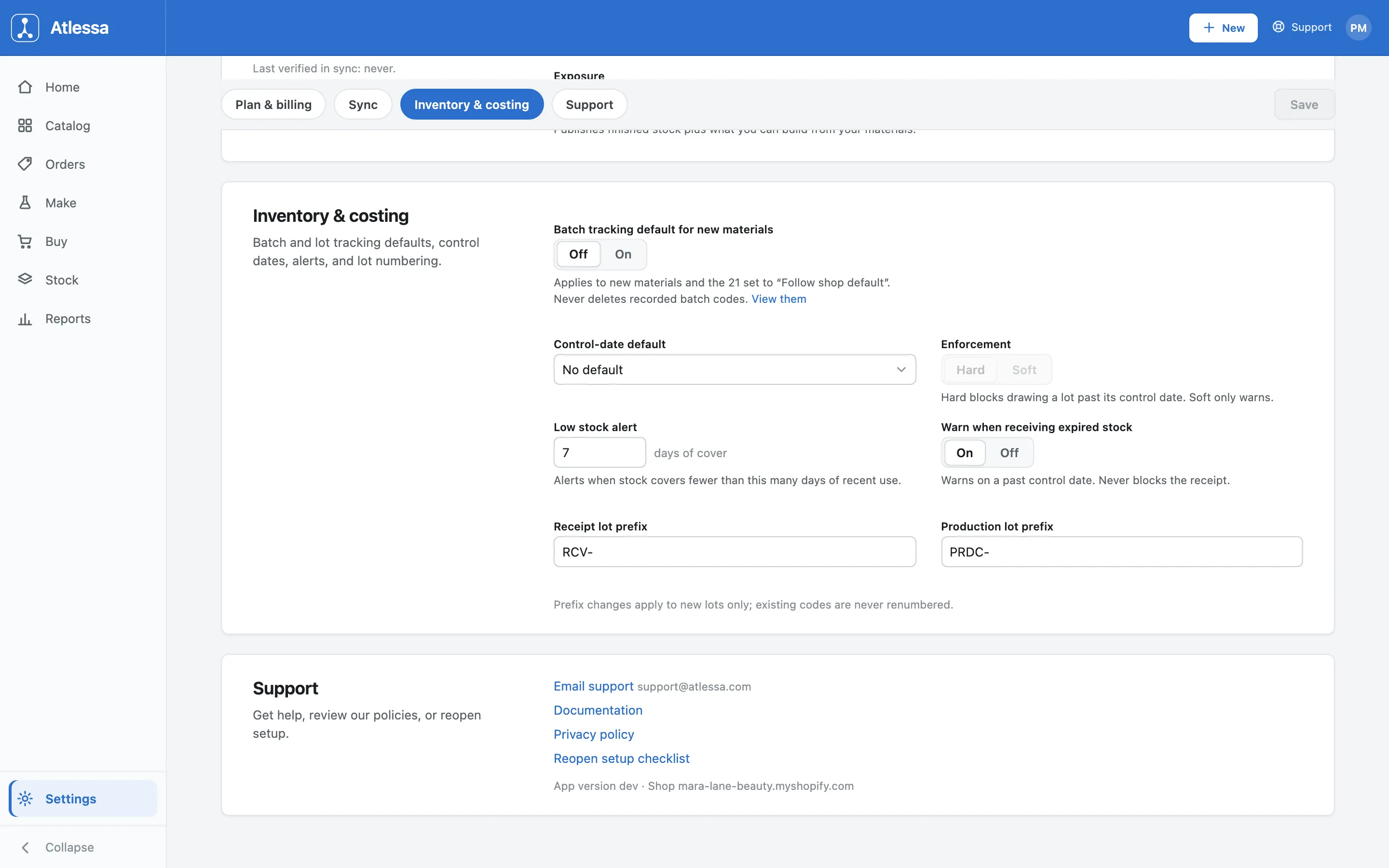
Inventory & costing: the batch tracking default, the control-date default and its Hard or Soft enforcement, the low-stock alert, the expired-receipt warning, and the two lot prefixes. - Support: get help, review policies, or reopen setup.
The last section is how to reach us and where the housekeeping lives:
- Email support (support@atlessa.com).
- Documentation.
- Privacy policy.
- Reopen setup checklist, which brings back the guided setup steps.
At the foot it shows your app version and connected shop, so when you write in you can quote exactly what you are running.
Support: email support, documentation, the privacy policy, reopen the setup checklist, and the app version and shop at the foot.
Common questions
- How is Settings organised?
- One page, four pill-linked sections: Plan & billing, Sync, Inventory & costing, Support. Changes stage until you press Save.
- What does the batch tracking default do, and what does it apply to?
- It decides whether a new material is lot-traced by default. It reaches new materials and ones set to Follow shop default, and never deletes batch codes you have already recorded.
- What is the difference between Hard and Soft enforcement?
- The shop default for drawing a lot past its control date: Hard blocks the draw, Soft only warns. It is set per item; materials on Follow shop default inherit this setting, and expiry is always hard whatever you pick. Choose Hard when an expired batch must never ship, Soft to keep the final call.
- What does the low stock alert measure?
- Days of cover. Atlessa alerts you when stock covers fewer than your set number of days (7 by default) of recent use: a forward-looking threshold, not a fixed count.
- What do the lot prefixes control, and does changing one renumber my old lots?
- Receipt (RCV-) and Production (PRDC-) number new lots. Changes apply to new lots only; existing codes are never renumbered, so your history and trace stay as they were.
- Where do I change my billing or my sync?
- Both on this page: billing in Plan & billing, sync in Sync. Each has its own article: Subscription and spend cap and How inventory sync works.
- How do I get help or reopen setup?
- The Support section, at the bottom: email support, documentation, the privacy policy, and Reopen setup checklist to bring back the guided setup steps, plus the app version and connected shop, handy to quote when you write in.
If it is not working
- My setting did not take effect.
- Changes stage first, so a setting goes live only when you press Save. If Save is greyed out, nothing is staged. Make your change, then Save.
- A new material is not lot-traced.
- Check the batch tracking default in Inventory & costing, and whether that material is set to Follow shop default. The default only reaches new materials and ones following the shop default, so a material set another way keeps its own setting.
- I changed a lot prefix but the old codes did not change.
- By design: prefix changes apply to new lots only, and existing codes are never renumbered. Your recorded lots keep their codes; future lots use the new prefix.