Bills of materials
A bill of materials is the recipe for a product: the components and quantities that go into one unit. Every run reads from it. The BOM tells Atlessa how many you can build now, reserves the exact materials when you run a batch, and rolls up what each product costs to make, so your margin is honest before you produce a single unit.
Steps
- Open BOMs, under Make or on a product's Recipe / BOM tab in Catalog.
The Make sub-nav runs Runs, Batches, BOMs, Buildable. Open BOMs for the list: one row per product, a coverage line at top (18 of 18 have a BOM here), and per row the Product, SKU, a Has BOM pill, Buildable now, Last updated, and Edit BOM (or Add BOM). The same BOM opens from the product's Recipe / BOM tab in Catalog, so whichever door you use, you edit one recipe.
Buildable now is how many finished units you could make right now from materials on hand, from each product's BOM (Amber & Vanilla Candle 193 pcs, Clear Brow Gel 447 pcs). Tick several rows to add them straight to a production run.
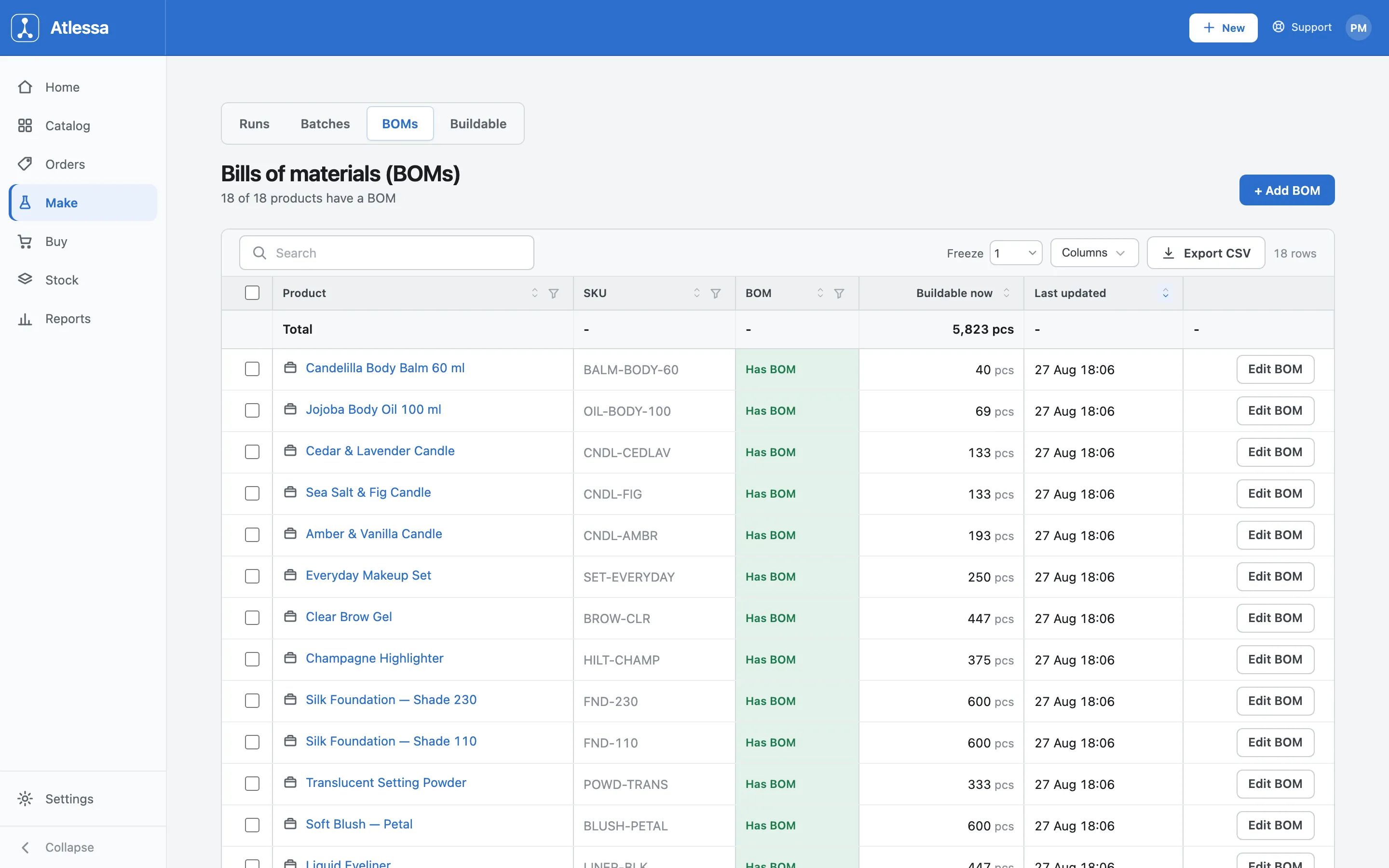
The BOMs list under Make: one row per product, a Has BOM pill, the Buildable now count, and Edit BOM (or Add BOM) per row. - Add or edit a BOM: set the batch, then add each component.
Open a product's BOM (Rose Lip Tint here). The editor has three sections:
- Batch has one field, Units per batch. Leave it at 1 to make to order, or set the batch size the recipe yields (1 = make to order, 100 = one batch yields 100). The component quantities are what one batch consumes, so everything scales against this.
- Components: each row is a component, its Qty per batch, and its Unit. Click + Add component, pick a material or a sub-assembly you make, then enter the quantity. The unit is fixed to how that component is stocked (kg, g, or pcs). Rose Lip Tint draws Lip Tint Base (1 pcs), Jojoba Oil (0.005 kg), Mica Pigment Rose Gold (1.5 g), a Lip Tint Tube 5 ml (1 pcs), a Round Product Label (1 pcs), and a Printed Carton (1 pcs).
- Notes: optional free text just for you (up to 500 characters) for anything worth remembering, like mixing, curing, handling, or safety.
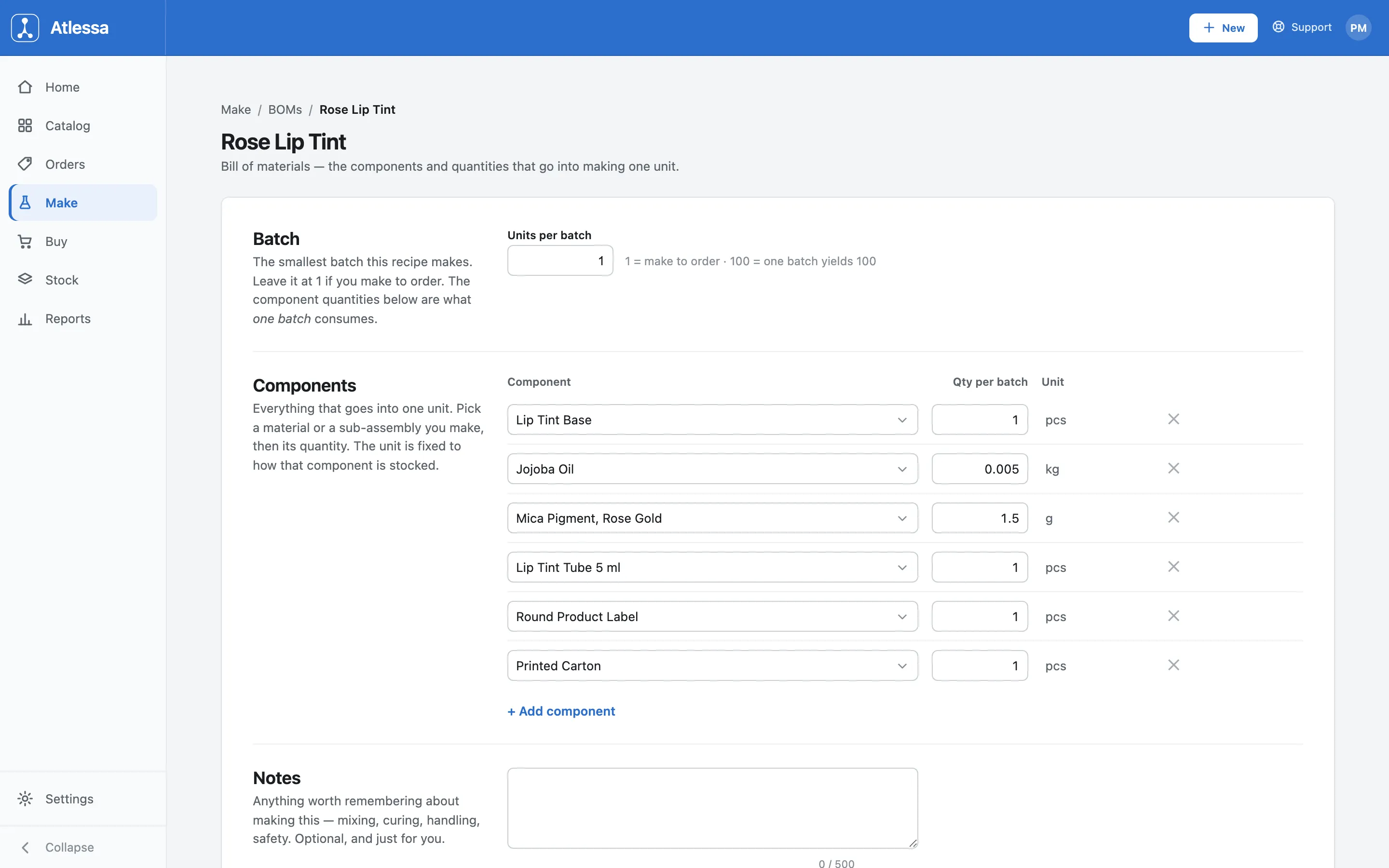
The BOM editor for Rose Lip Tint: Units per batch, the component rows with their fixed units, and an optional Notes field. - Go multi-level: a component can be something you make.
A component need not be a raw material. It can be a sub-assembly, an intermediate you make that has its own BOM. Open Lip Tint Base and its recipe is raw materials only: Jojoba Oil (kg), Candelilla Wax (kg), and Shea Butter, refined (kg). Because the base is itself a component of Rose Lip Tint, the finished recipe is two levels deep: raw materials into the base, then the base plus the rest into the tint. That is a multi-level BOM, and Atlessa builds it in the right order.
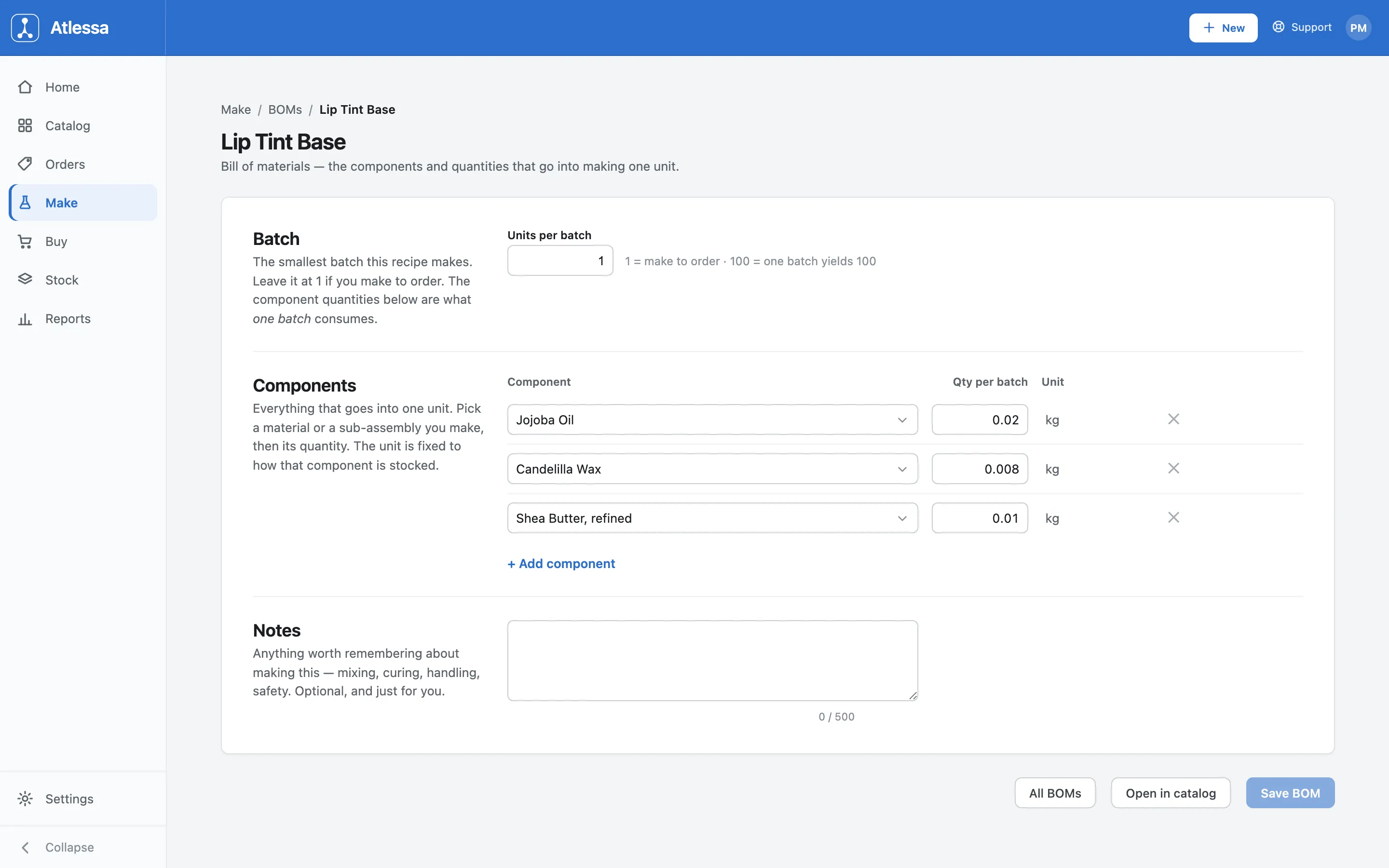
The BOM editor for Lip Tint Base, an intermediate: its components are raw materials, and the base is in turn a component of Rose Lip Tint. - Save the BOM.
Click Save BOM and the recipe goes live. From then it drives the Buildable now count, reserves the right materials (and any sub-assemblies) when you run a batch, and rolls the Cost to make up from the components at their current stock cost. The editor also carries Open in catalog and All BOMs links, to jump to the product's Recipe / BOM tab or back to the list without losing your place.
Common questions
- What is a bill of materials, and why does it matter?
- The recipe for a product: the components and quantities to make one unit. Every run reads from it, so without one Atlessa cannot tell you buildable, cannot reserve materials, and cannot cost the product. With one, all three come for free.
- What does Units per batch mean, and what should I set it to?
- The smallest batch the recipe makes. Leave it at 1 to make to order; set your real batch size (say 100) if a batch yields many. Buildable and reservations scale from it, so match how you produce.
- Can a component be something I make, not just a raw material?
- Yes, a sub-assembly, an intermediate with its own BOM, like Lip Tint Base. Because it is itself a component of Rose Lip Tint, the finished recipe runs two levels deep, a multi-level BOM Atlessa builds base first.
- Where does the cost to make come from?
- Each component's current stock cost (your WAC) times its quantity, with a sub-assembly contributing its own make-cost. When a material's WAC changes, the cost to make updates on its own, so you see your margin before you produce.
- How does the BOM drive buildable and run reservations?
- Buildable now divides materials on hand by what the BOM needs per unit. A run reserves the exact quantities of each component (and any sub-assembly) so nothing else draws them. One recipe feeds both.
- What happens in a run if a product has no BOM?
- It cannot be made until it has one. The list shows Add BOM, and a draft run greys it out with a prompt to add a BOM first. Add the recipe on its BOM editor or Recipe / BOM tab in Catalog, and the run can reserve against it.
- Why can I not choose a component's unit?
- It is fixed to how that component is stocked (kg, g, or pcs), keeping the quantity tied to real stock so buildable and reservations line up with the shelf.
If it is not working
- Buildable is lower than I expected.
- Buildable is limited by the scarcest component. One material may be short, or a sub-assembly may need its own stock or BOM before it can count. Open the BOM and check each component against materials on hand.
- I cannot add a component.
- A component must already exist as a material or a product in Catalog, since you pick it from the list. If it is not there, add it in Catalog first, then add it to the BOM.
- The cost to make looks wrong.
- It rolls up from each component's WAC and any sub-assembly's make-cost. A figure that looks off usually traces to a component: check the quantities, that each material has a real landed cost feeding its WAC, and that any sub-assembly is costed too.